User Guide
Explore all the features and documentation of our app in this User Guide. Learn how to use each feature effectively and get the most out of your experience.
DASHBOARD
Dashboard
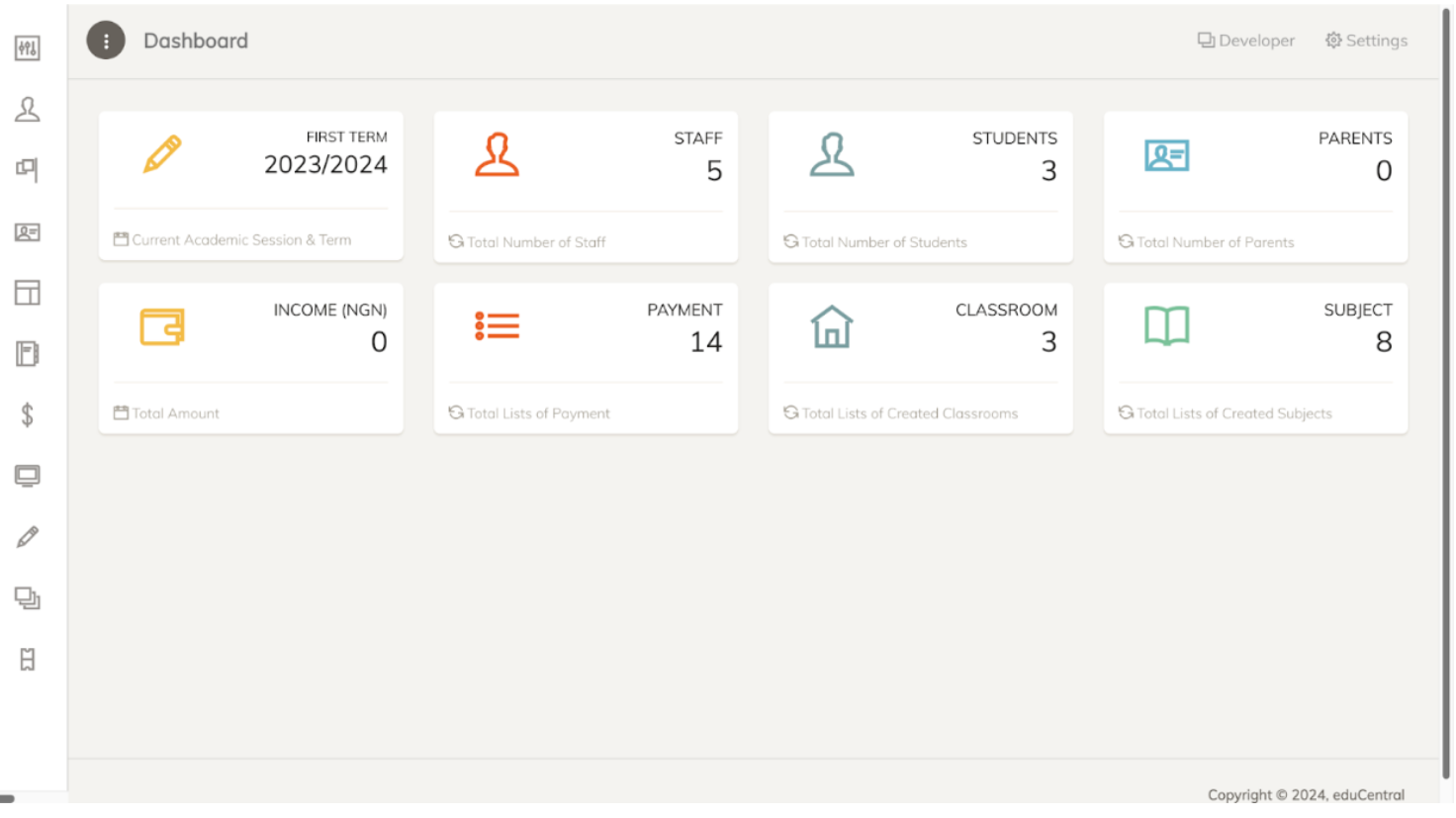
The dashboard presents a range of important information for the school, such as the current academic session and term, the total number of staff, the total number of students, the total number of registered parents, income, payments made to the school, lists of all the created classrooms, and lists of created subjects. To access any of this information, click on the desired page, and you will be redirected there. On the left side of the page, there is a dashboard that activates when your mouse hovers over it. This dashboard includes various sub-features provided by the application.
CREATE ACCOUNT
Create Staff Account
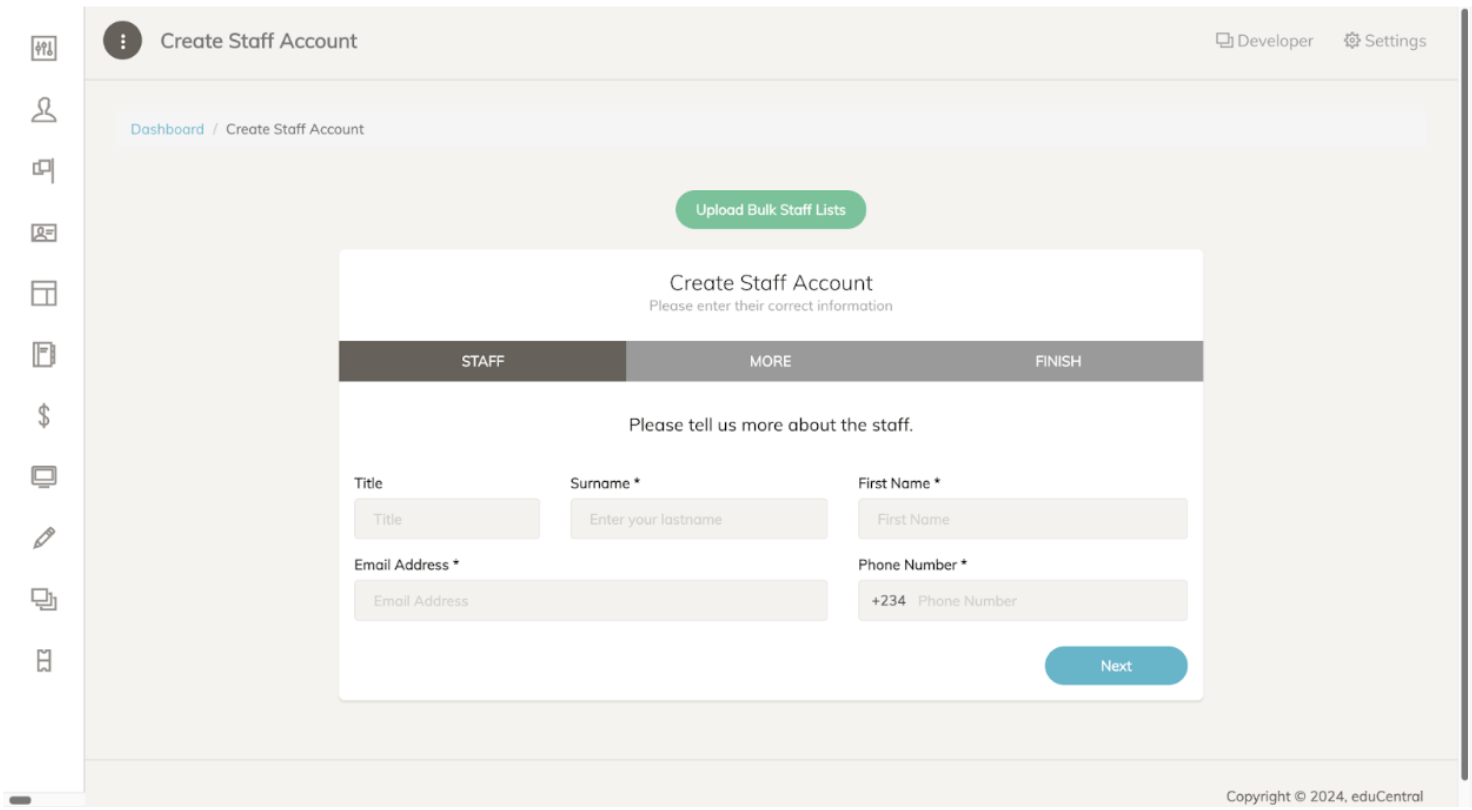
This feature is for creating a staff account. You must fill in all the required fields with the staff member's unique information, such as their title, surname, first name, email, and phone number. Once done, click the 'Next' button in the lower right corner to continue filling out information until you ar finished. There is also an option to upload staff members in bulk, click the ‘Upload Bulk Staff Lists’ on the top of the page to add multiple staff members at one time.
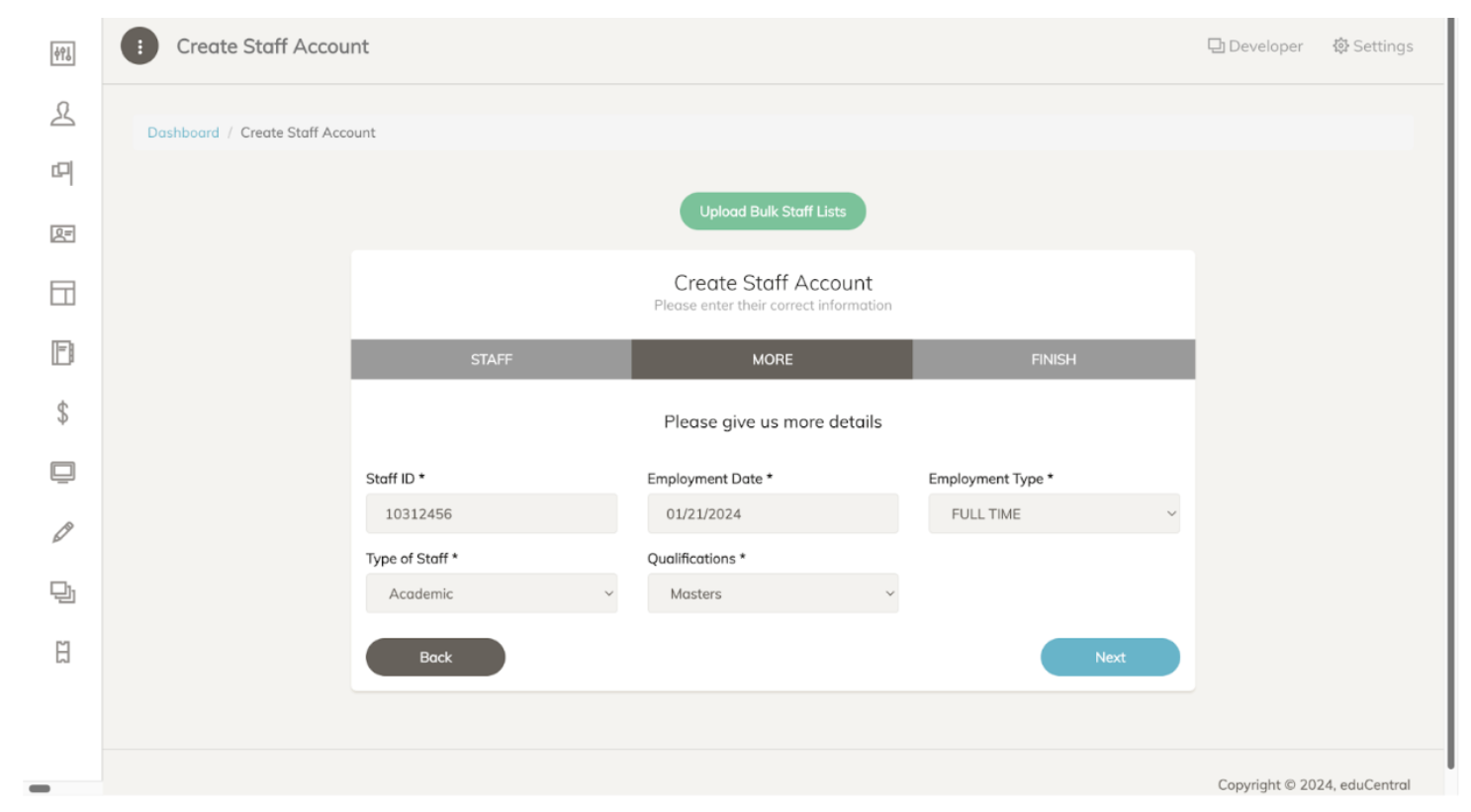
Continue filling out the required information until finished. Click the ‘Next’ button to proceed.
CREATE ACCOUNT
Create Student Account
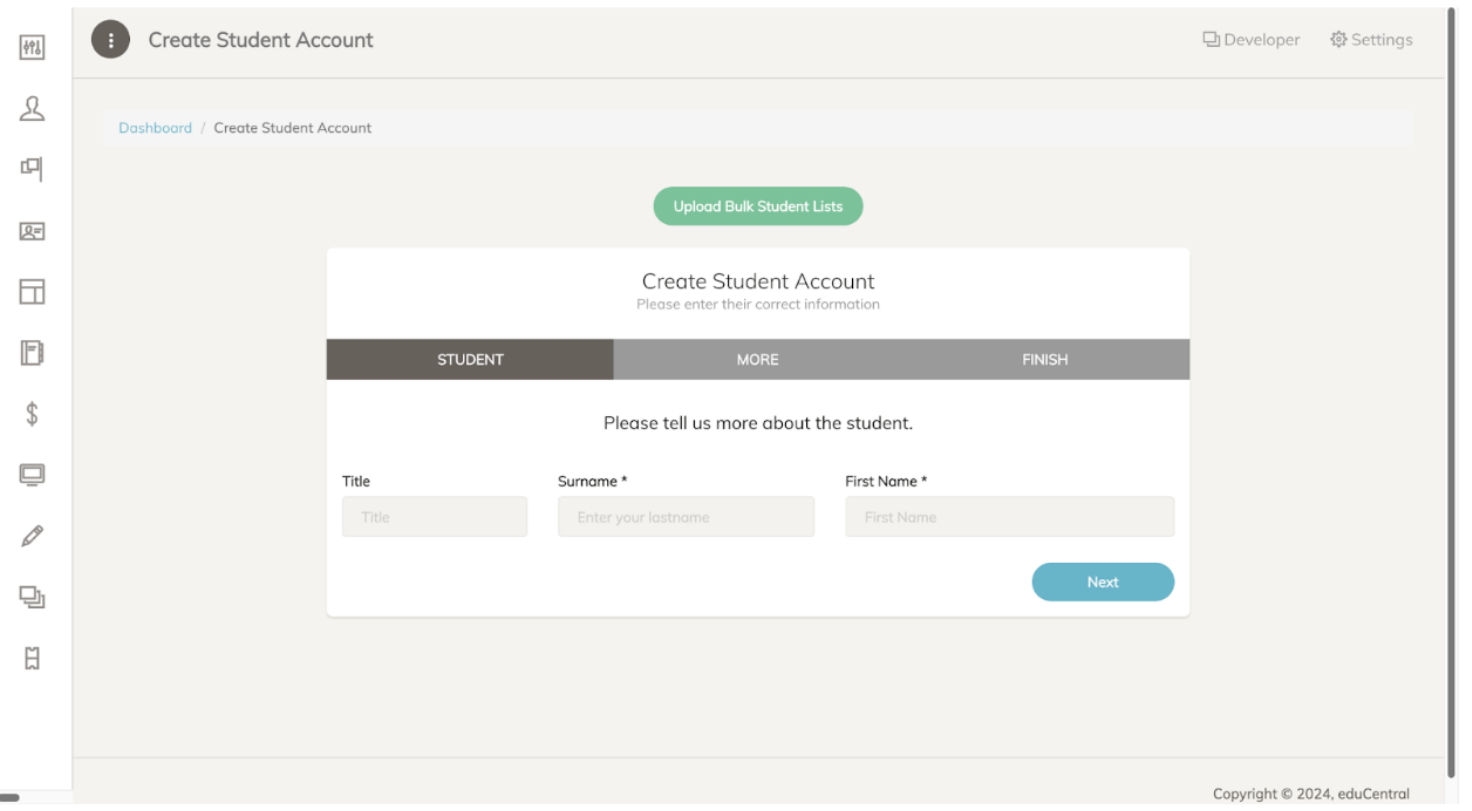
This feature is for creating a student account. You must fill in all the required fields with the student's unique information, such as their title, surname, and first name. Once done, click the 'Next' button in the lower right corner to continue filling out information until you are finished. There is also an option to upload students in bulk; click the ‘Upload Bulk Student Lists’ at the top of the page to add multiple students at one time.
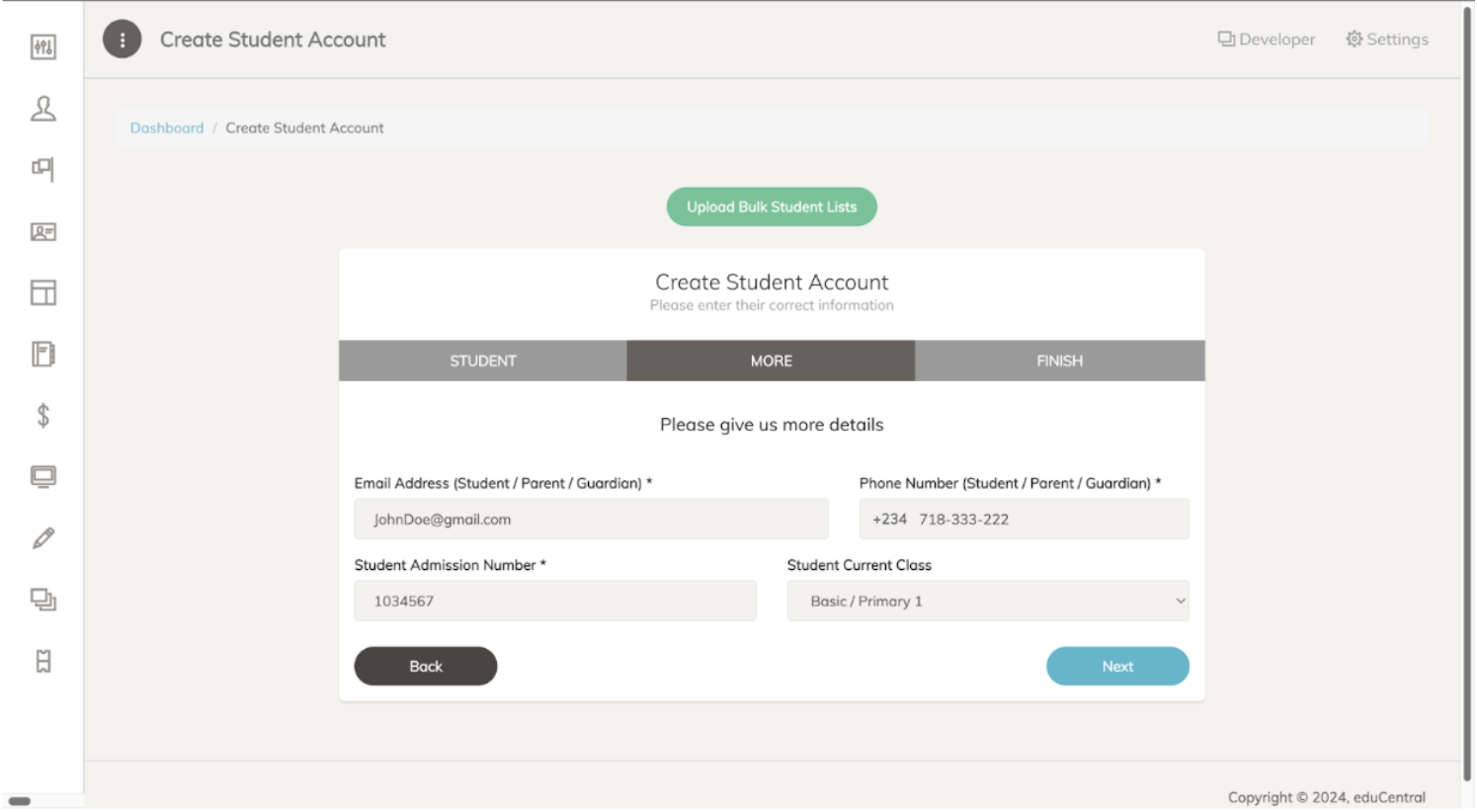
Continue filling out the required information until finished. Click the ‘Next’ button to proceed.
CREATE ACCOUNT
Create Parent Account
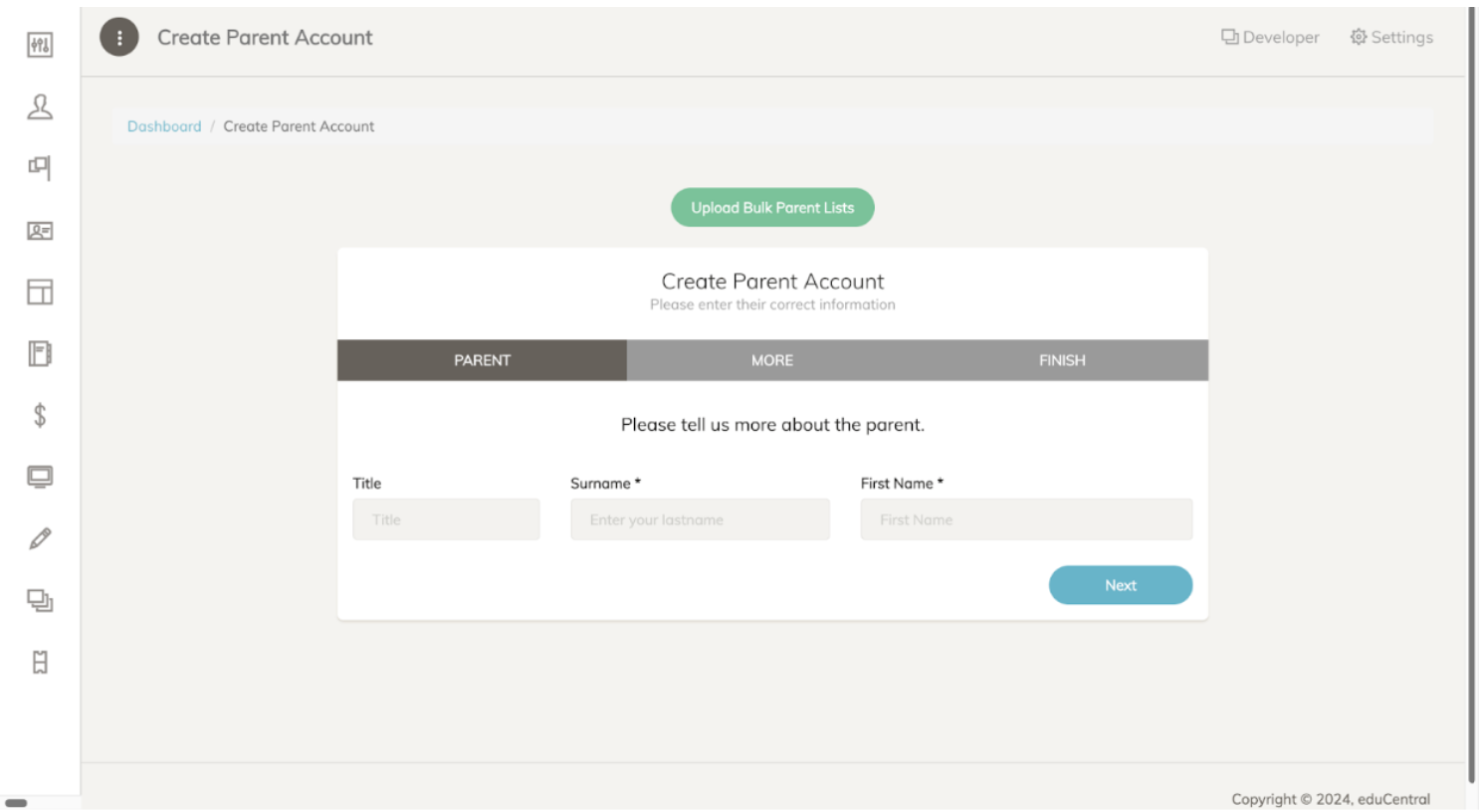
This feature is for creating a parent account. Fill in all the required fields with the parent's unique information, such as their title, surname, and first name. To add multiple parents at once, click the ‘Upload Bulk Parent Lists’ button at the top. After entering the details, click 'Next' in the lower right to proceed with the account creation process.
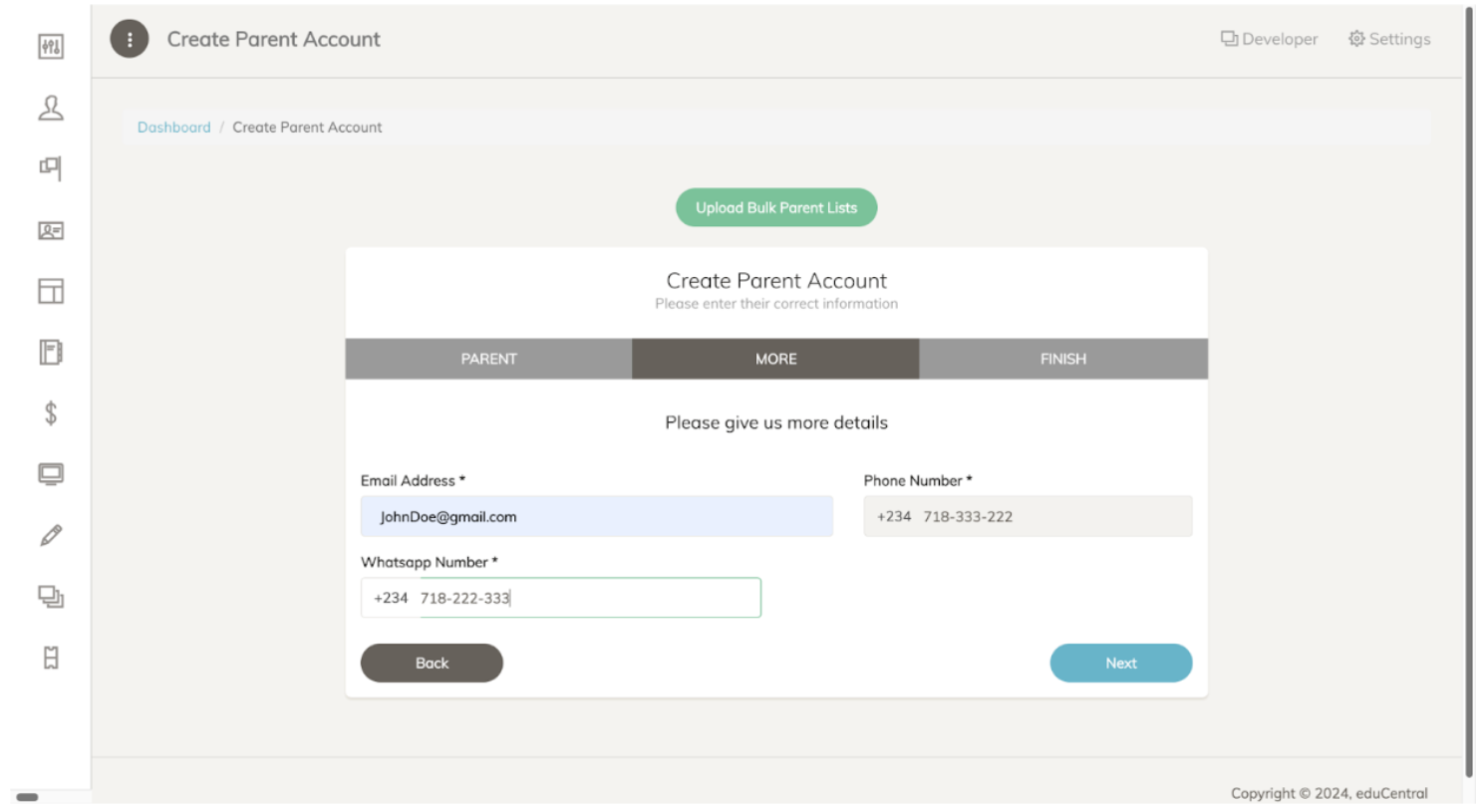
Continue filling out the required information until finished. Click the ‘Next’ button to proceed.
ADMISSION MANAGEMENT
Admission Information
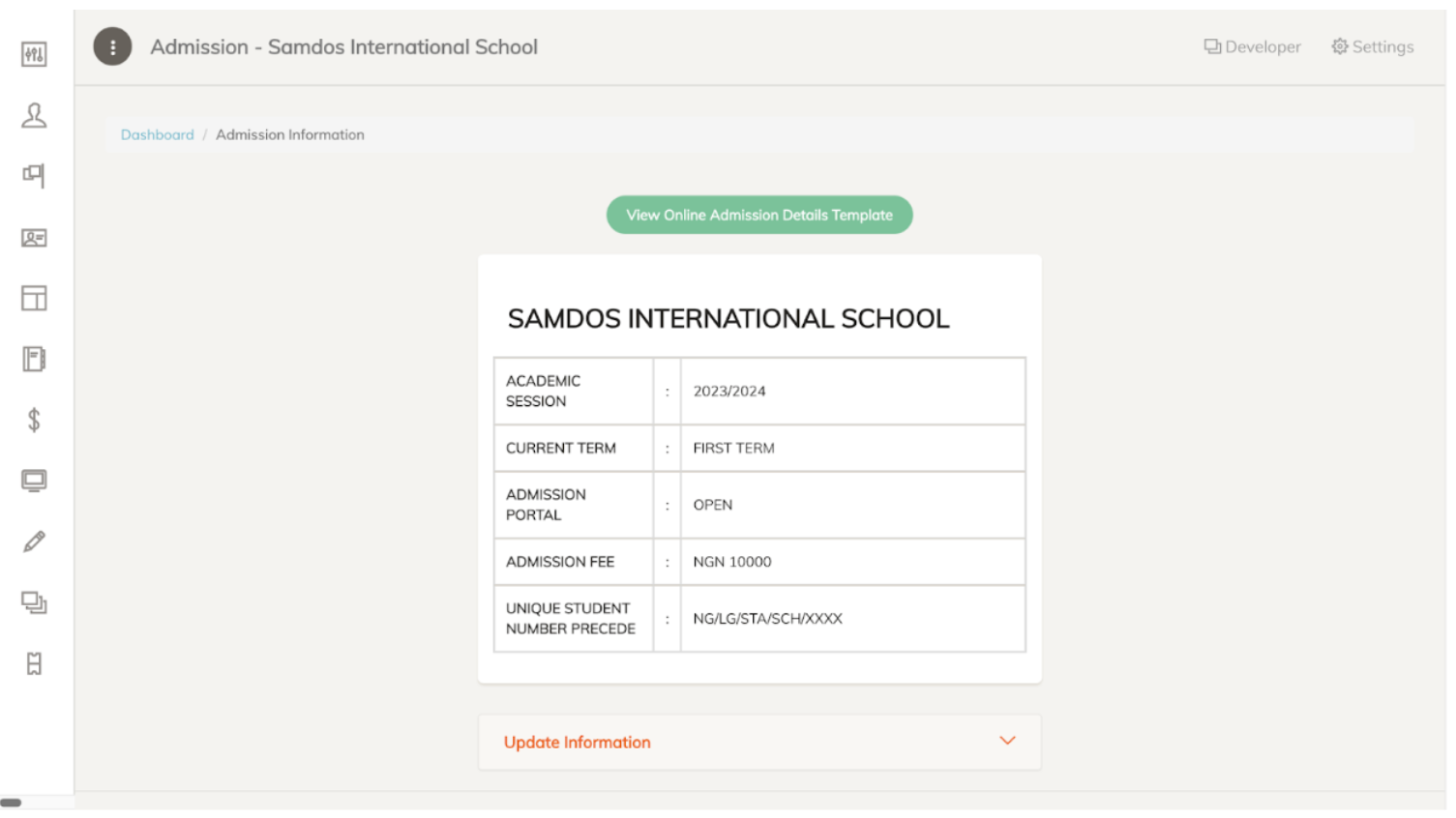
The page displays various information, including the current academic session, the current term, the status of the admission portal (open or closed), the admission fee amount, and details regarding the unique student number.
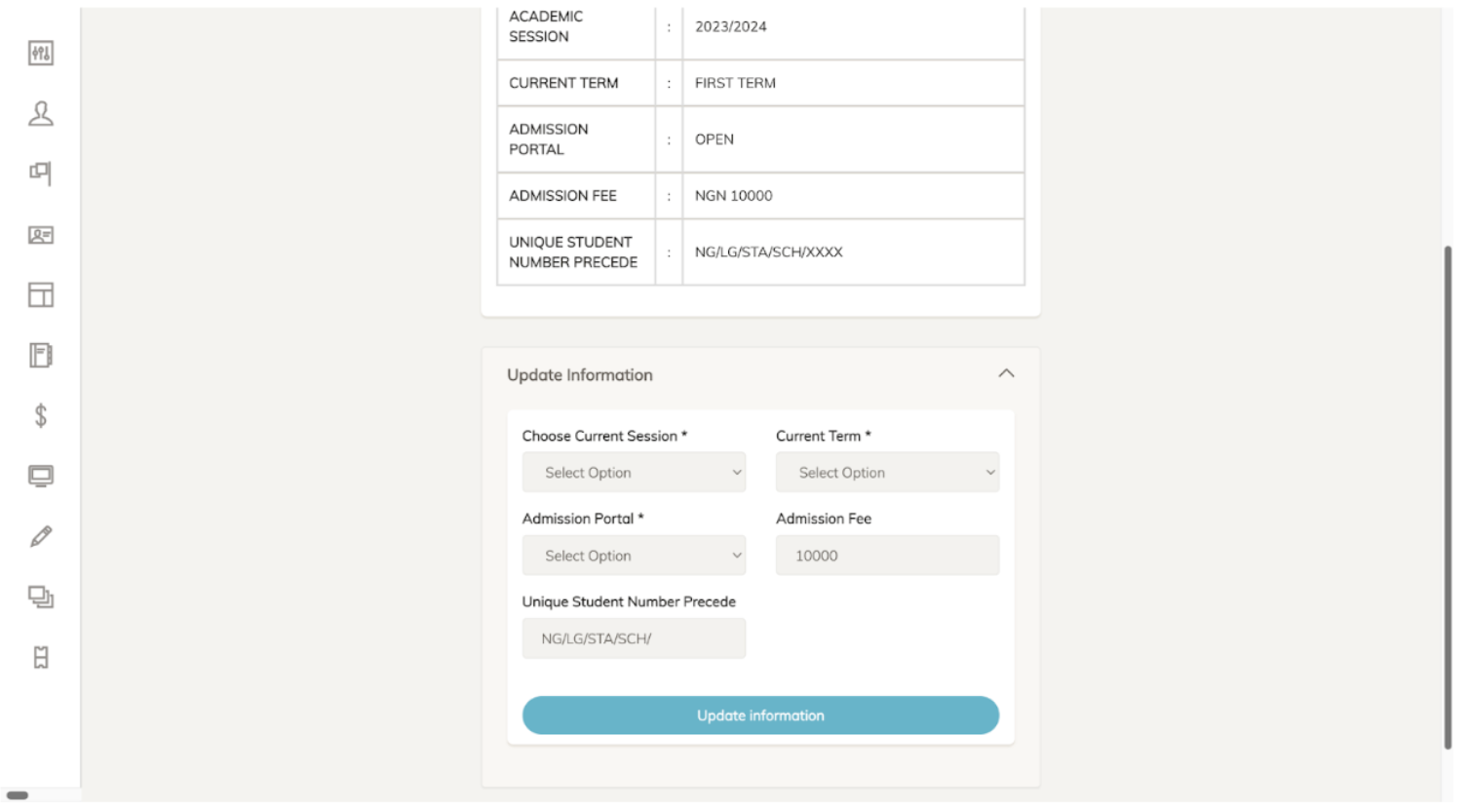
To update information Click the red highlighted dropdown tab called ‘Update information’. Then proceed to fill in all the required fields.
ADMISSION MANAGEMENT
Admission Status
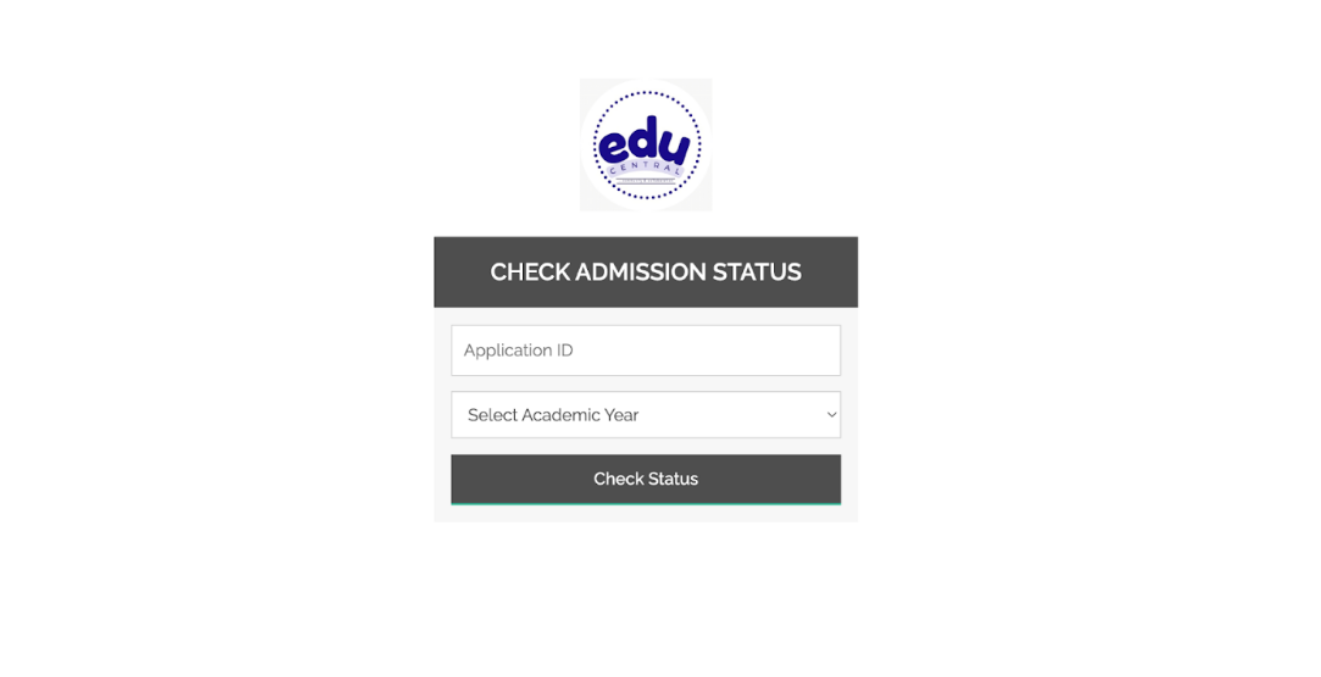
This page enables individuals to check their admission status by entering their 'Application ID' and selecting their academic year from the dropdown menu. To proceed, click the 'Check Status' button located at the bottom.
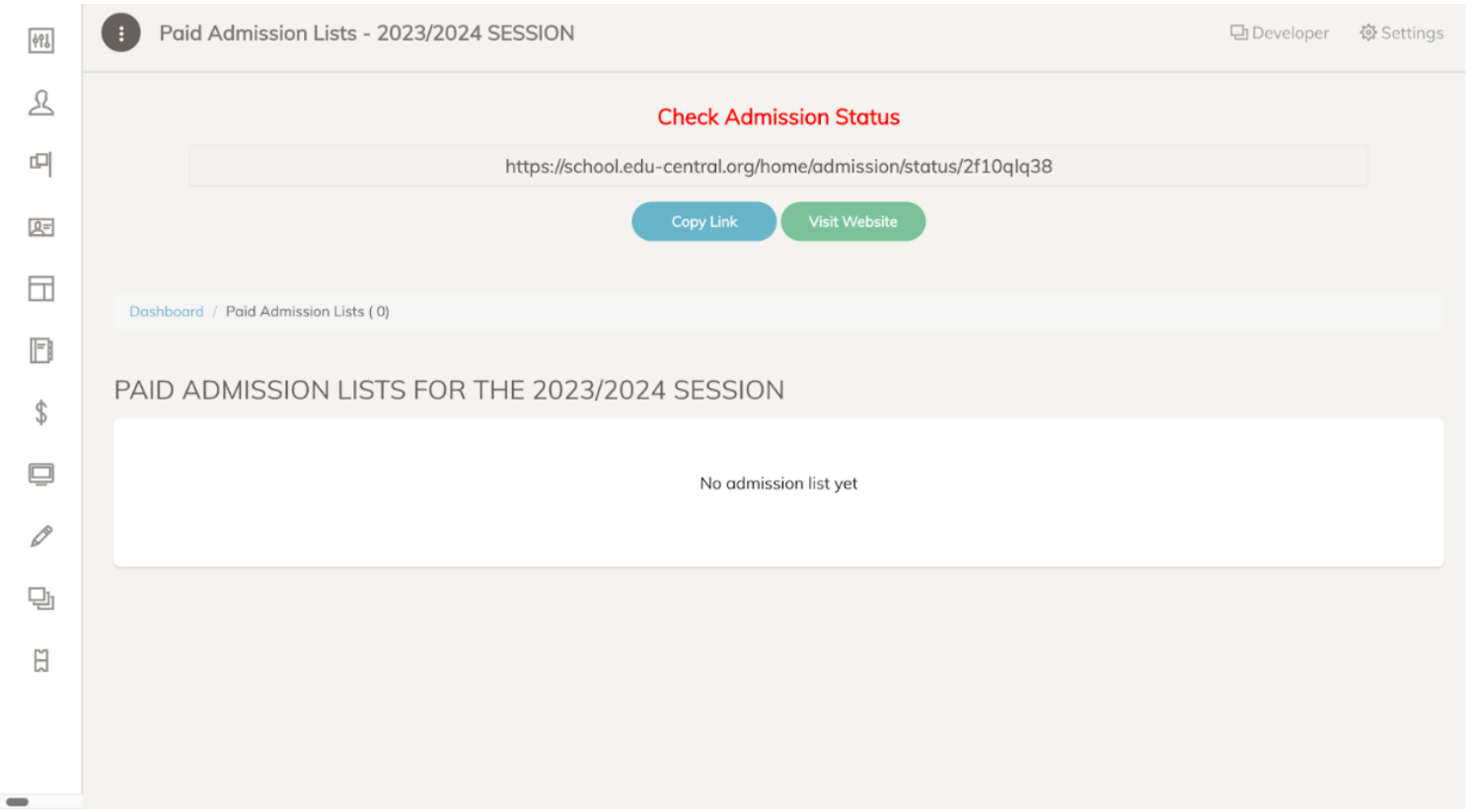
This page lists all the individuals who have paid their admission fees for the school. It also includes a link to the admissions status website, as well as a feature to copy the link to the admission status website.
ADMISSION MANAGEMENT
Unpaid Admissions
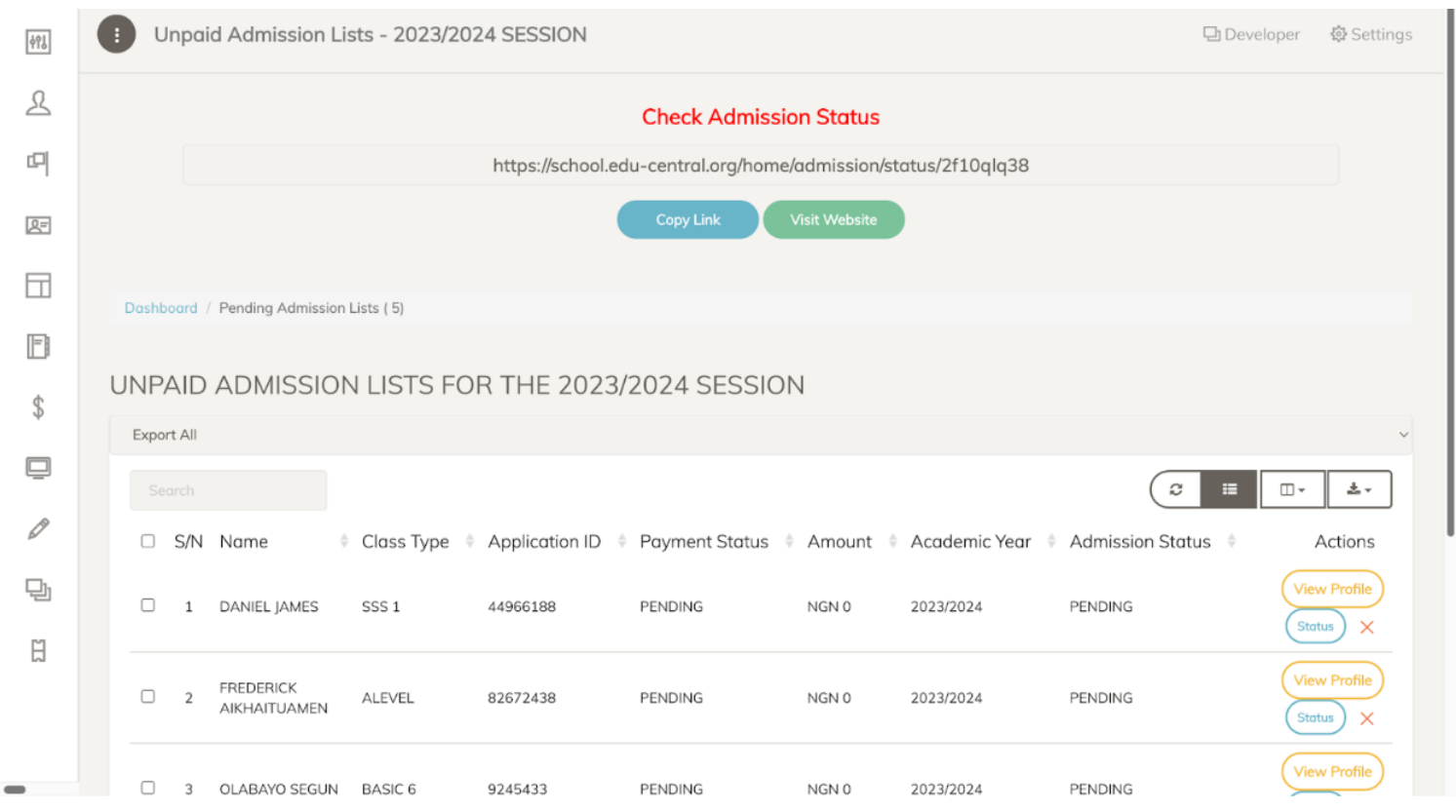
This page displays a list of individuals who have not paid their admission fees for the school. It provides an option to search for a specific individual and filter results based on the listed attributes. It also provides the ability to view the individual's profile and status of their application. Additionally, the page enables users to download the list of unpaid admission fees. It also includes a link to the admissions status website, along with a feature to copy this link.
ADMISSION MANAGEMENT
Admitted Student
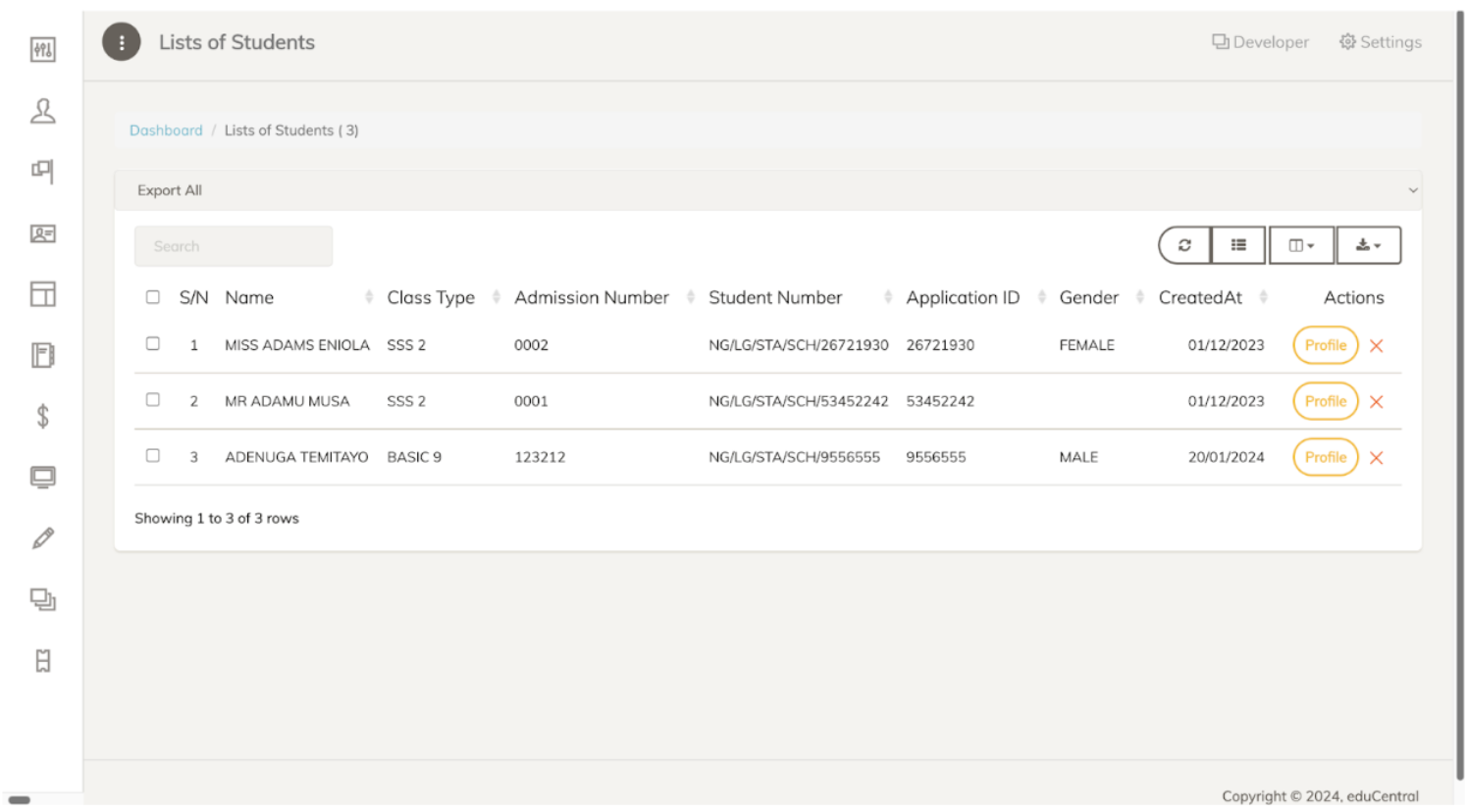
This page displays a list of all students who have been admitted to the school. It offers the functionality to view each individual's profile. Users can search for a specific individual and filter results using the listed attributes. Additionally, the page allows for the downloading of the list of admitted students.
STUDENT MANAGEMENT
Students
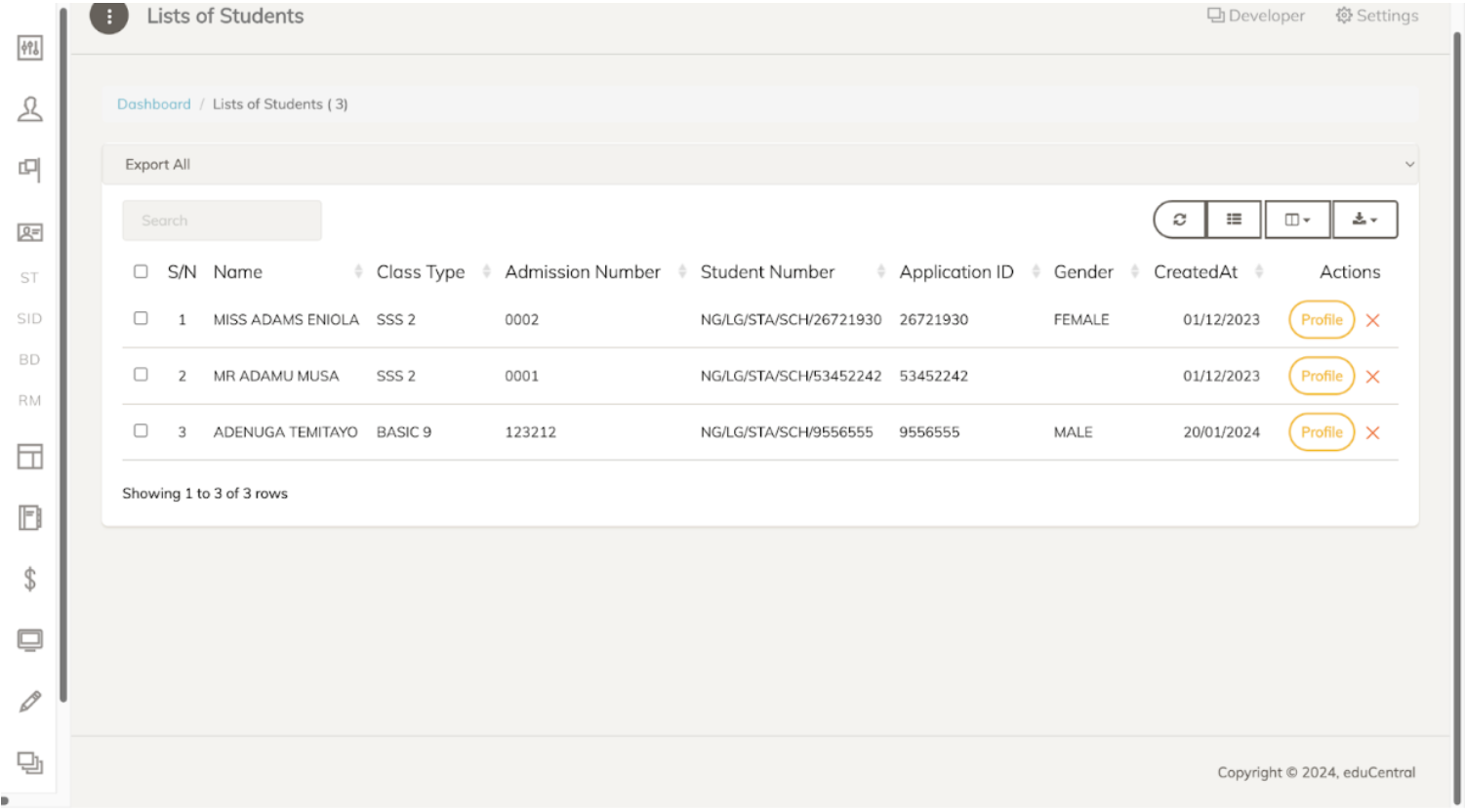
This page displays a list of all students who are attending the school. It offers the functionality to view each individual's profile. Users can search for a specific individual and filter results using the listed attributes. Additionally, the page allows for the downloading of the list of admitted students.
STUDENT MANAGEMENT
Student Id Card
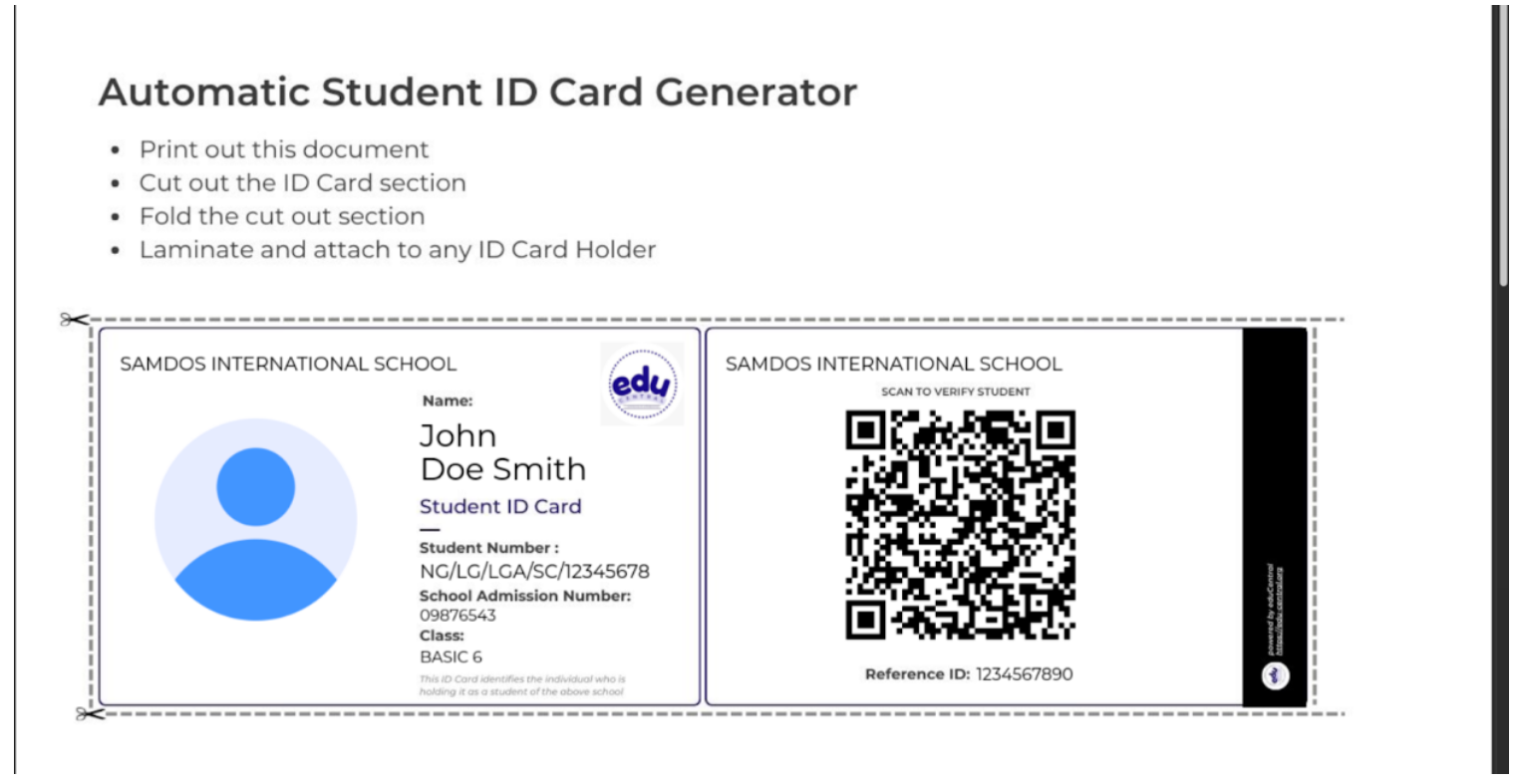
This page generates a student ID card template, as shown above.
STUDENT MANAGEMENT
Student Birthdays
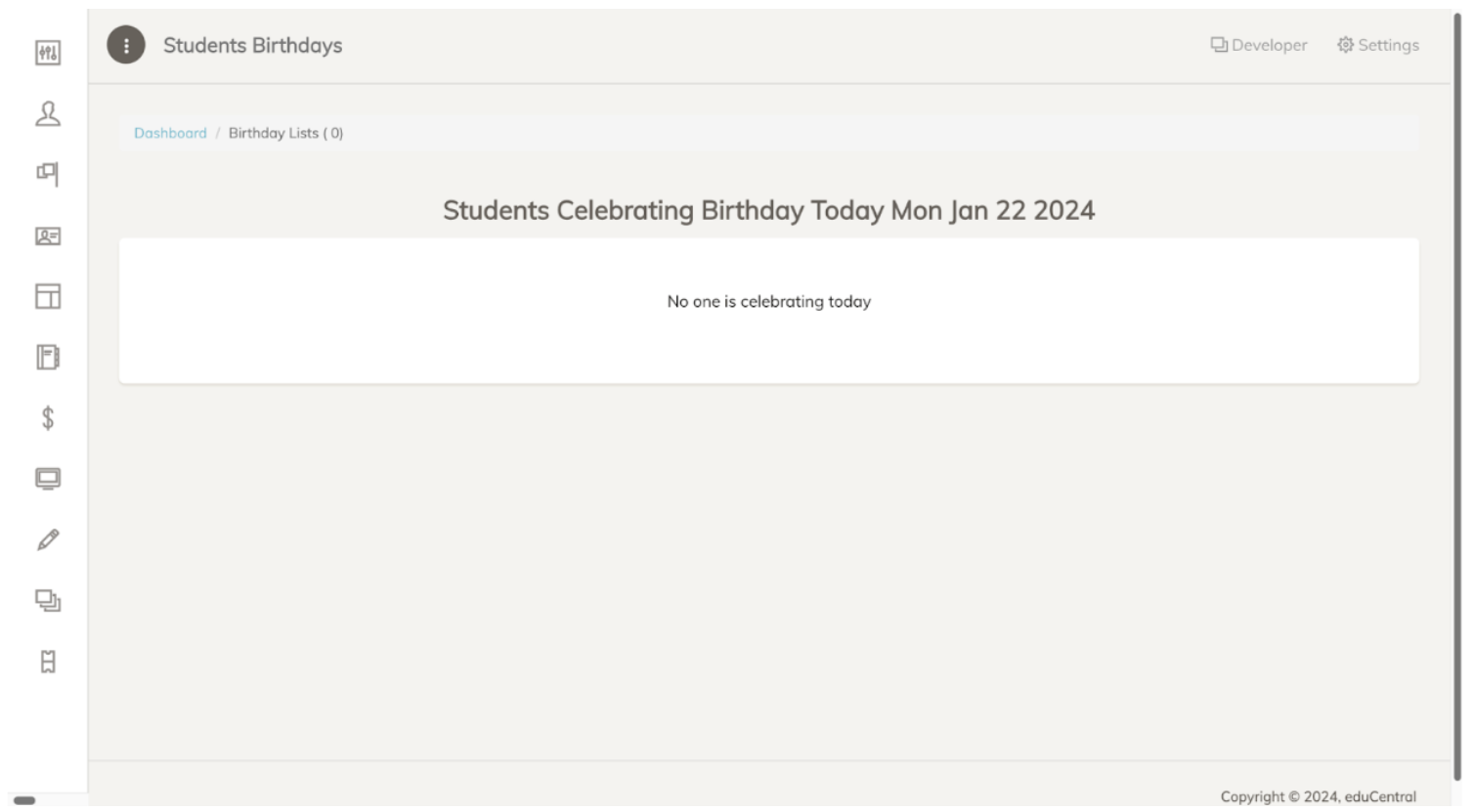
This page displays a list of all students whose birthdays are today.
HUMAN RESOURCES
Board of Directors
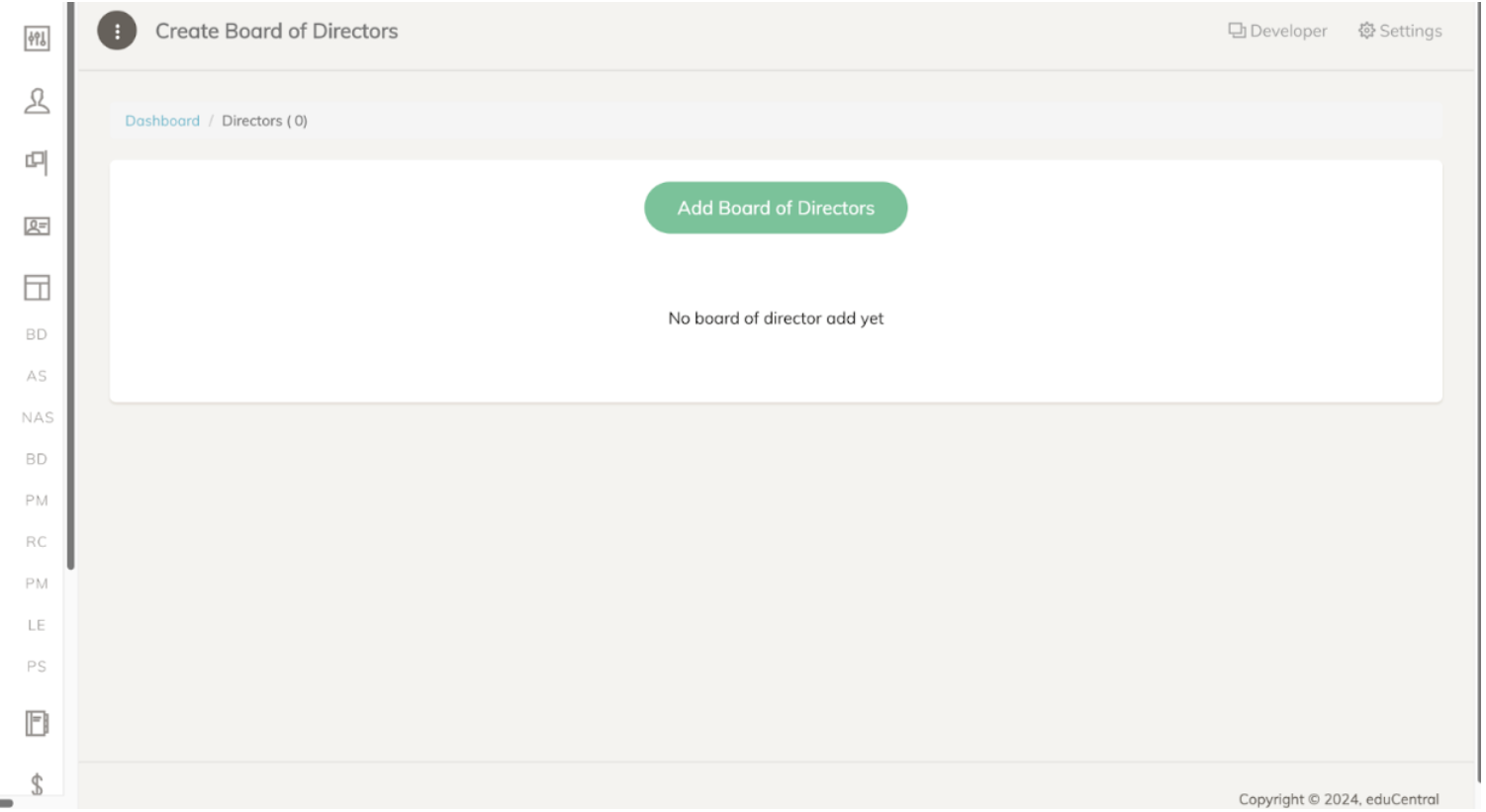
This page enables the user to add members to the board of directors in the system. To add individuals to the board, click the 'Add Board of Directors' button, which is highlighted in green.
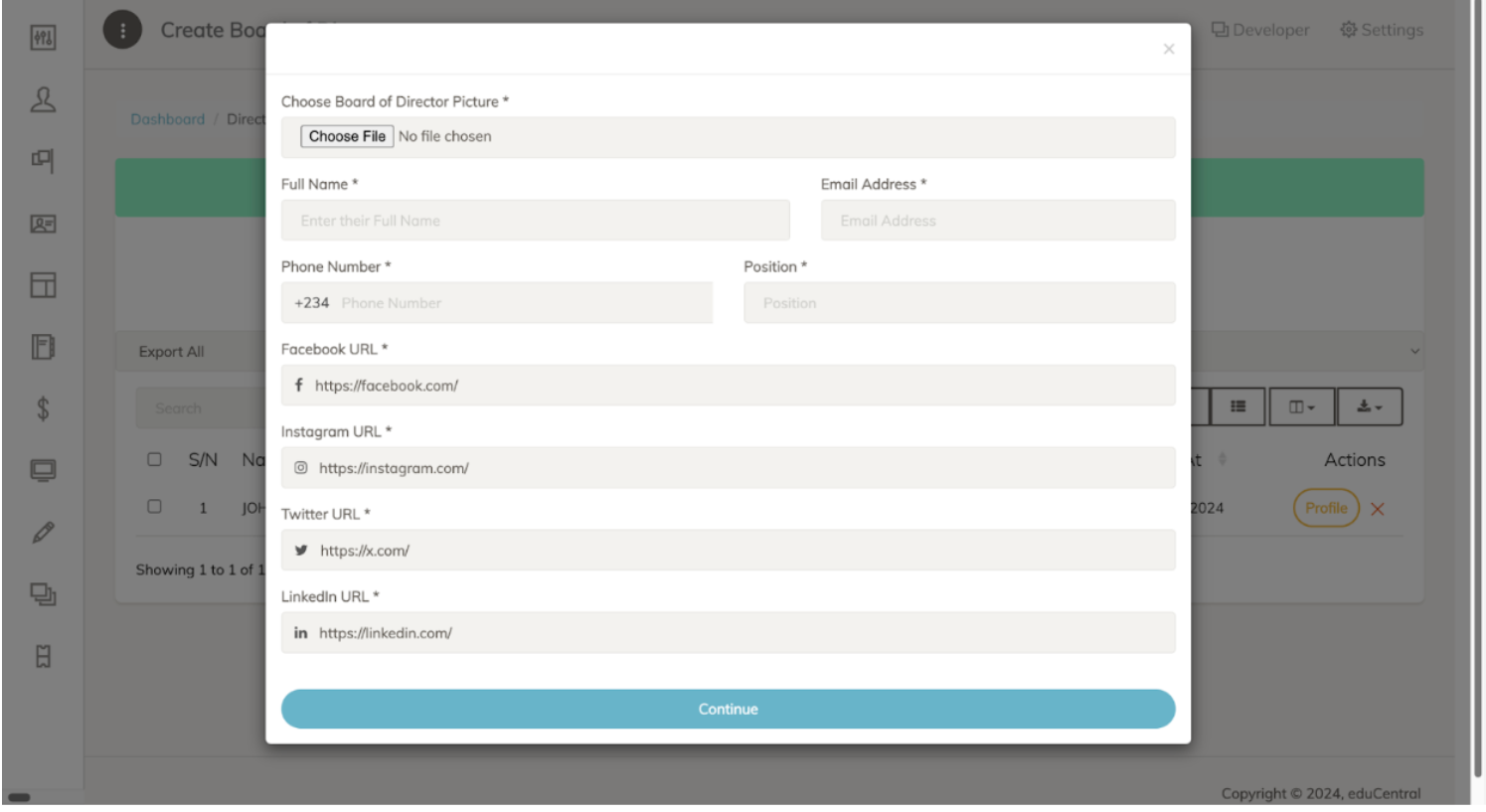
Once you have clicked the button, fill out all the required fields and upload a profile picture. Optionally, you may add the director's social media links, such as Twitter, Instagram, Facebook, and LinkedIn accounts. To proceed, click the 'Continue' button highlighted in blue at the bottom of the pop-up window.
HUMAN RESOURCES
Academic Staff
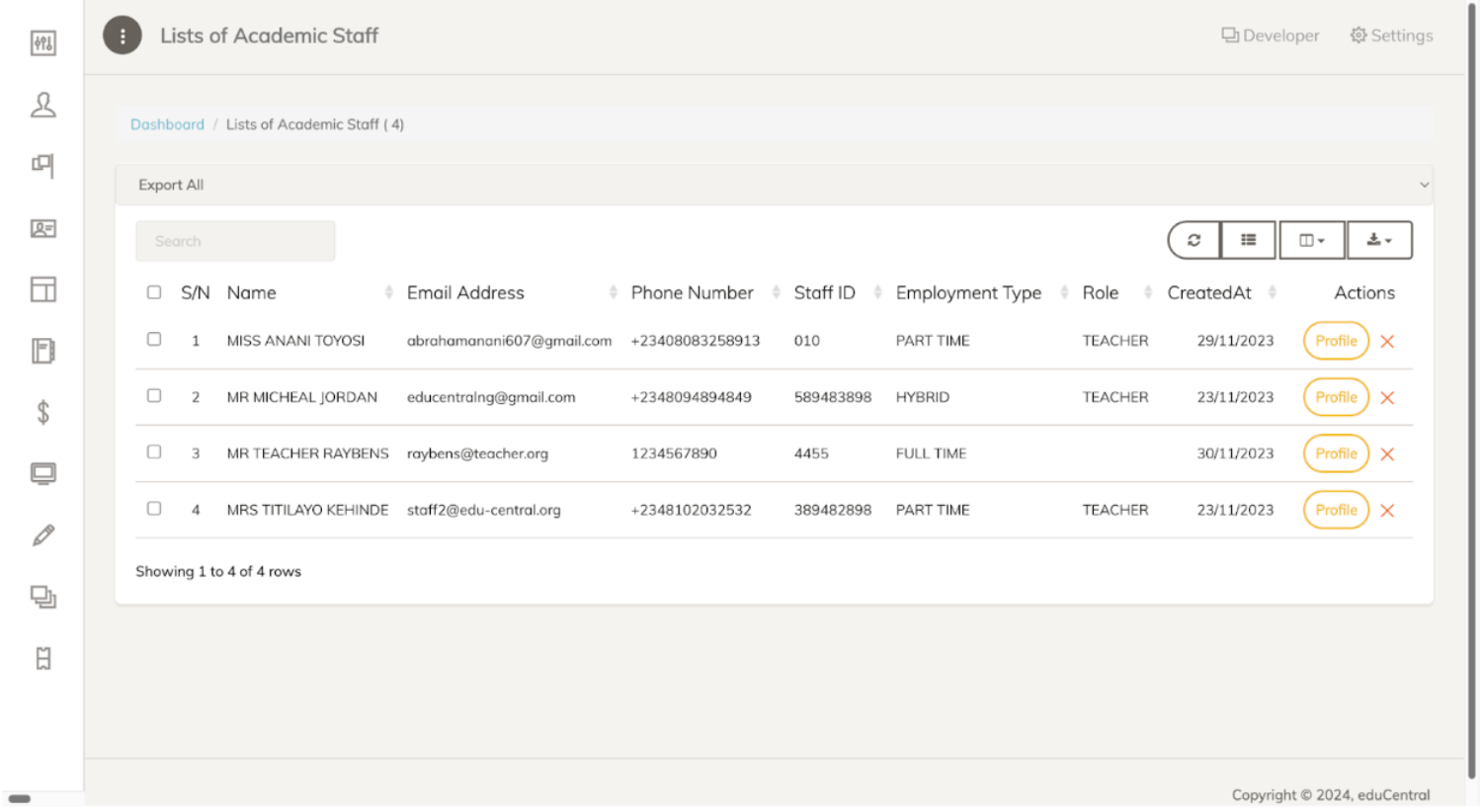
This page displays a list of all academic staff who are working at the school. It offers the functionality to view each individual's profile. Users can search for a specific individual and filter results using the listed attributes. Additionally, the page allows for the downloading of the list of academic staff.
HUMAN RESOURCES
Non-Academic Staff
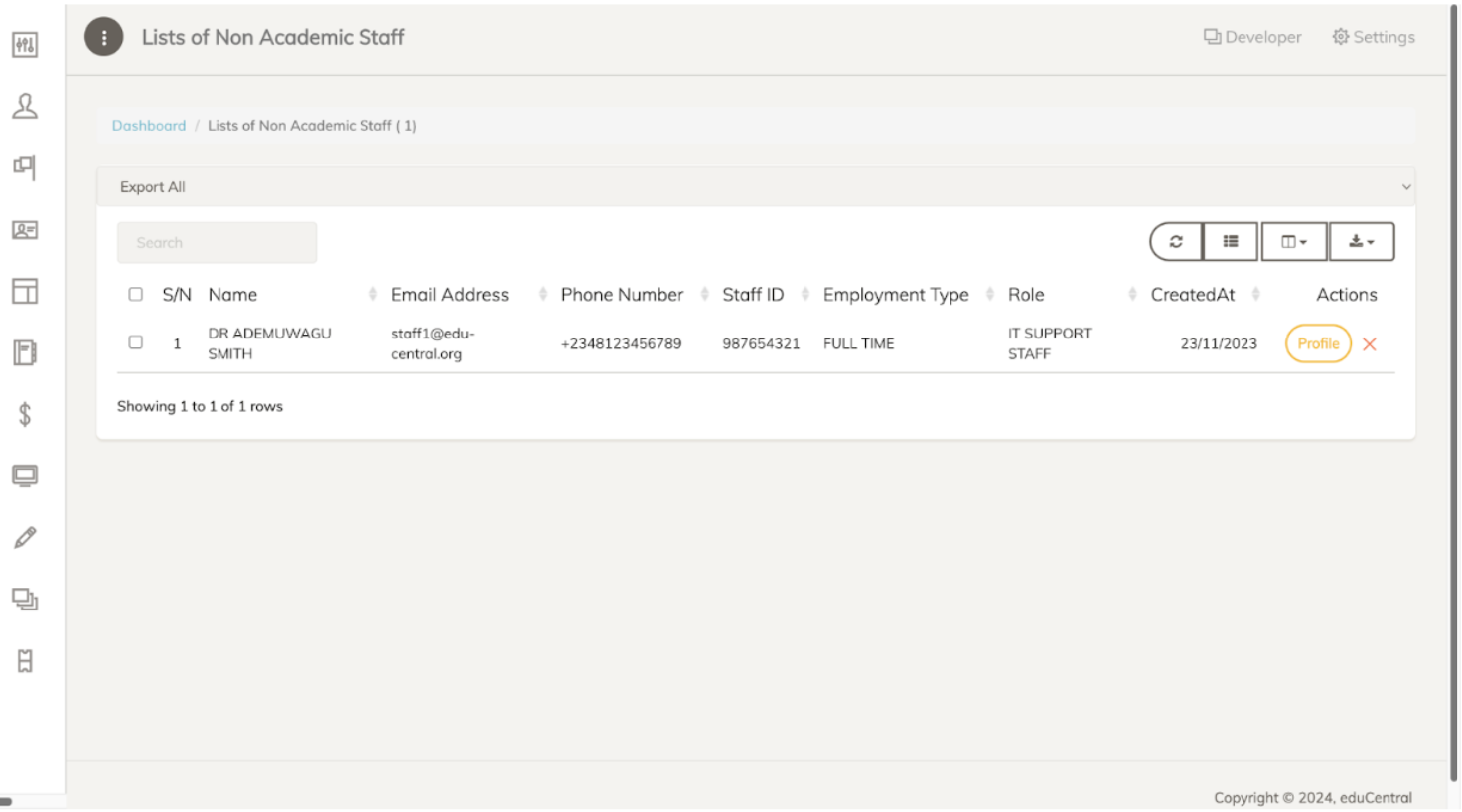
This page displays a list of all non-academic staff who are working at the school. It offers the functionality to view each individual's profile. Users can search for a specific individual and filter results using the listed attributes. Additionally, the page allows for the downloading of the list of non-academic staff.
HUMAN RESOURCES
Staff Birthdays
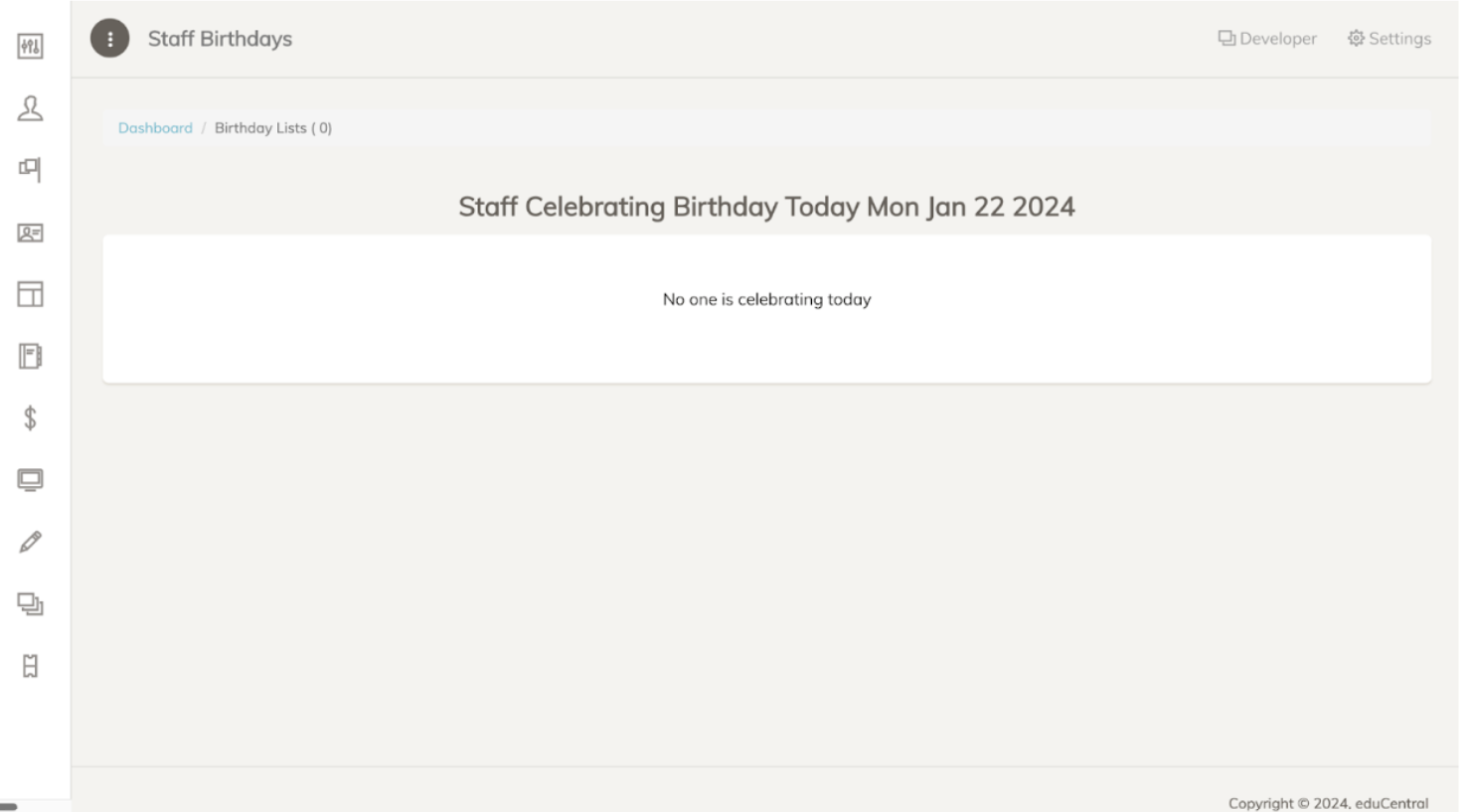
This page displays a list of all staff whose birthdays are today.
HUMAN RESOURCES
Parents
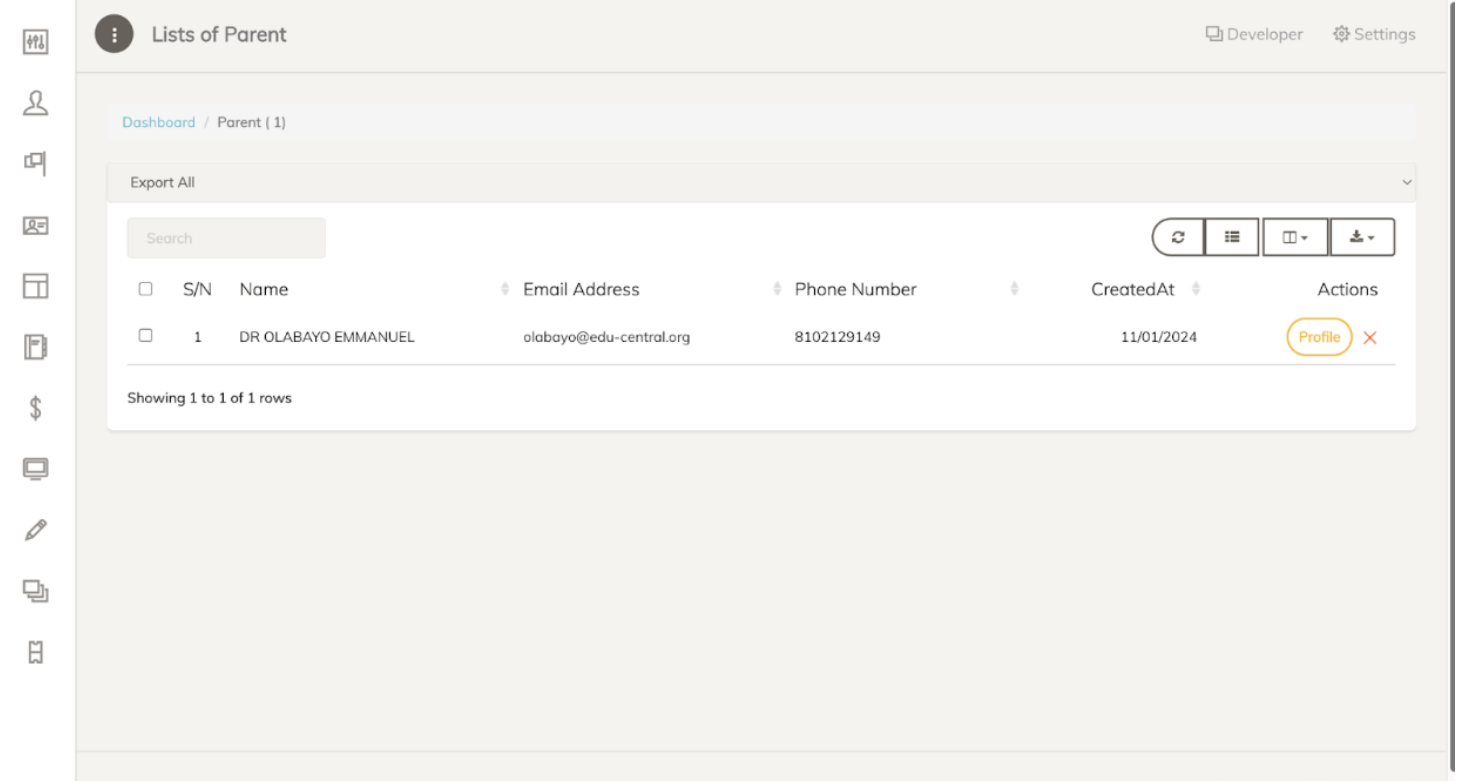
This page displays a list of all parents who are registered at the school. It offers the functionality to view each individual's profile. Users can search for a specific individual and filter results using the listed attributes. Additionally, the page allows for the downloading of the list of parents.
HUMAN RESOURCES
Recruitment
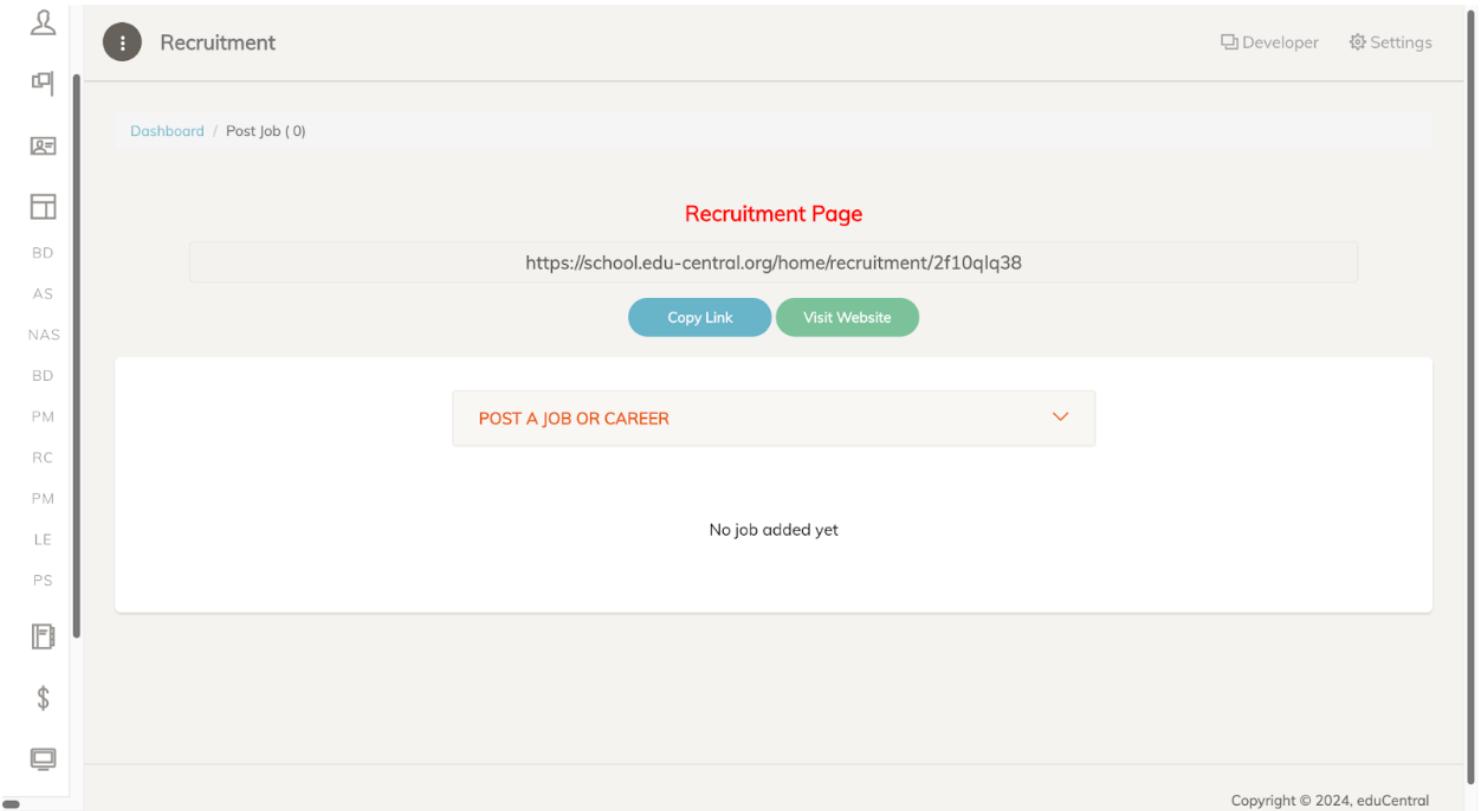
This page enables you to create a job post. Click on the 'Post A Job or Career' dropdown tab to do so. It also includes a link to the recruitment page, along with a feature to copy this link.
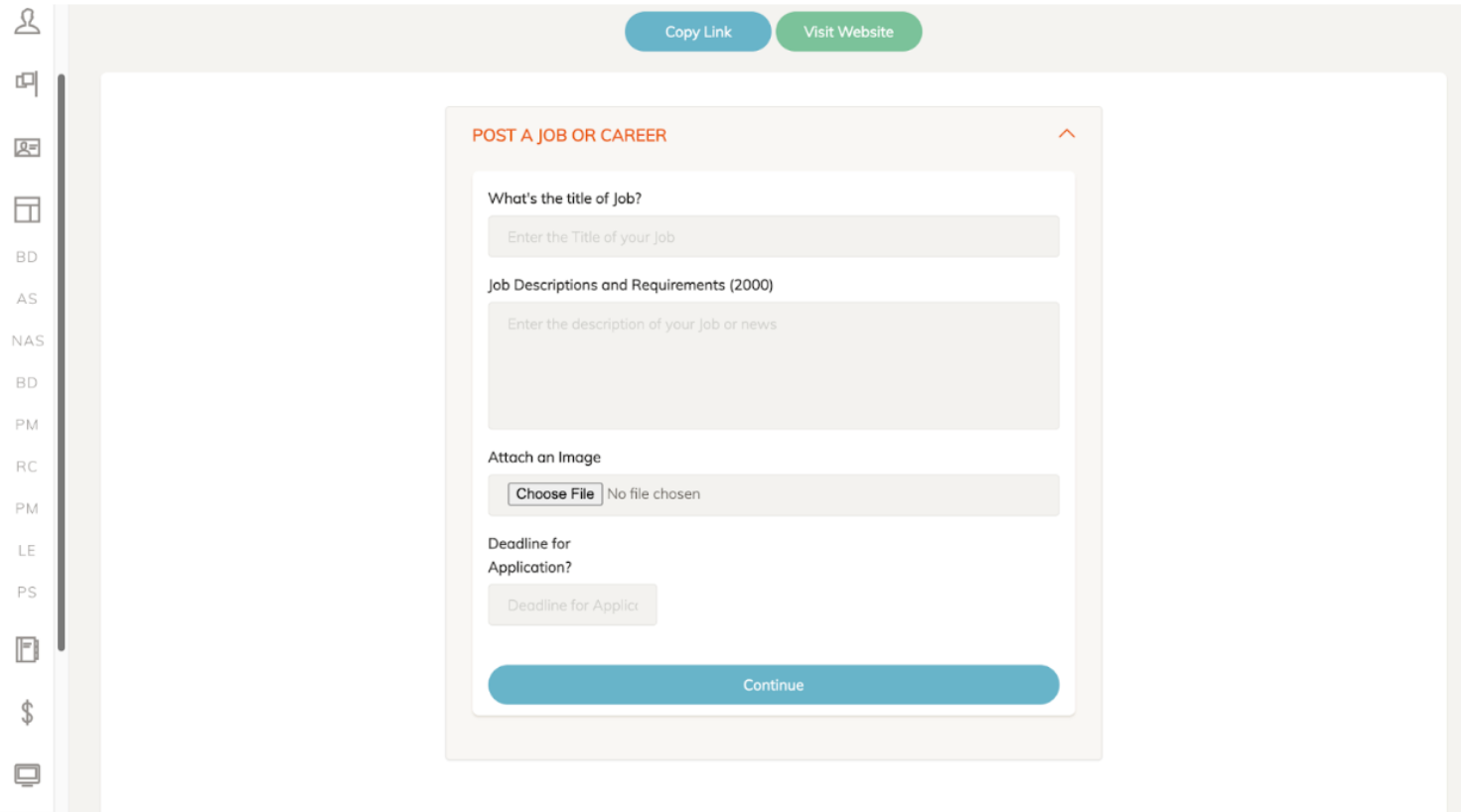
To post a job, fill out the required fields, attach an image of the job posting, and include a deadline. To proceed, click the 'Continue' button highlighted in blue.
ACCOUNT MANAGEMENT
All Payment Lists
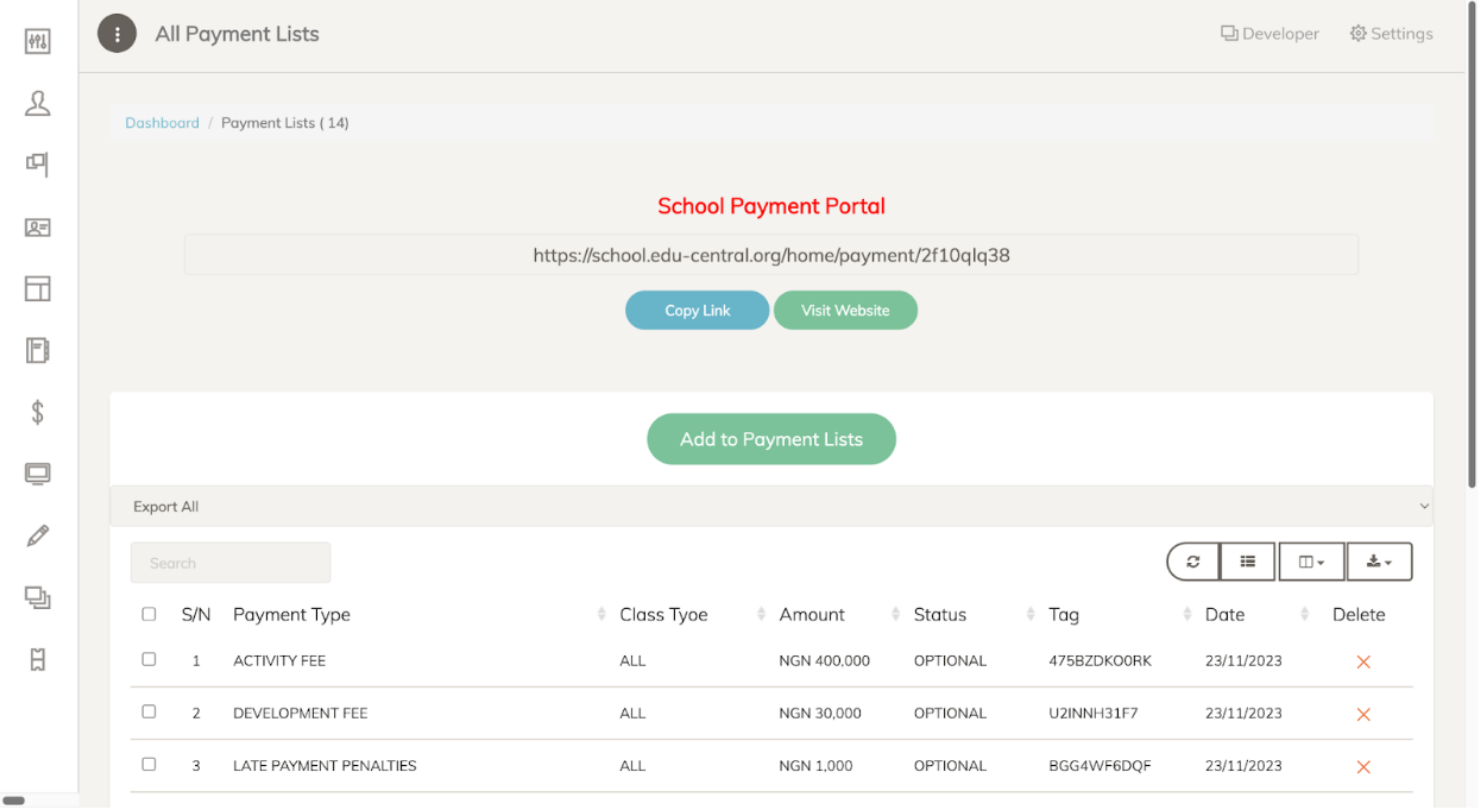
This page displays a list of all payments made to the school. Users can search for a specific payment and filter results using the listed attributes. Additionally, users can add a payment to the list by clicking the 'Add to Payment Lists' button, which is highlighted in green. The page also includes a link to the school's payment portal, along with a feature to copy this link.
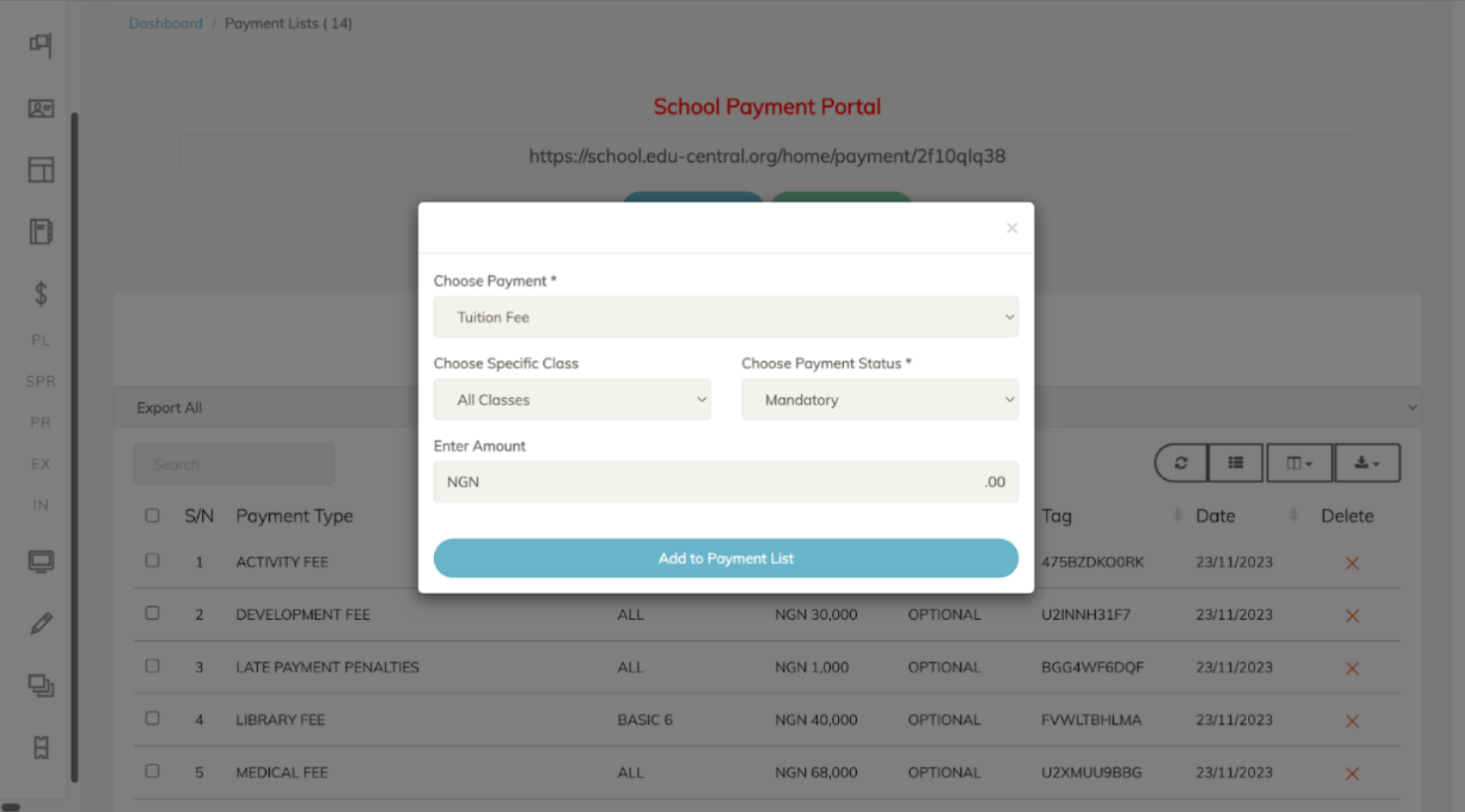
To add a payment, fill out all the required fields and click the 'Add to Payment List' button, which is highlighted in blue.
ACCOUNT MANAGEMENT
Student Payment Records
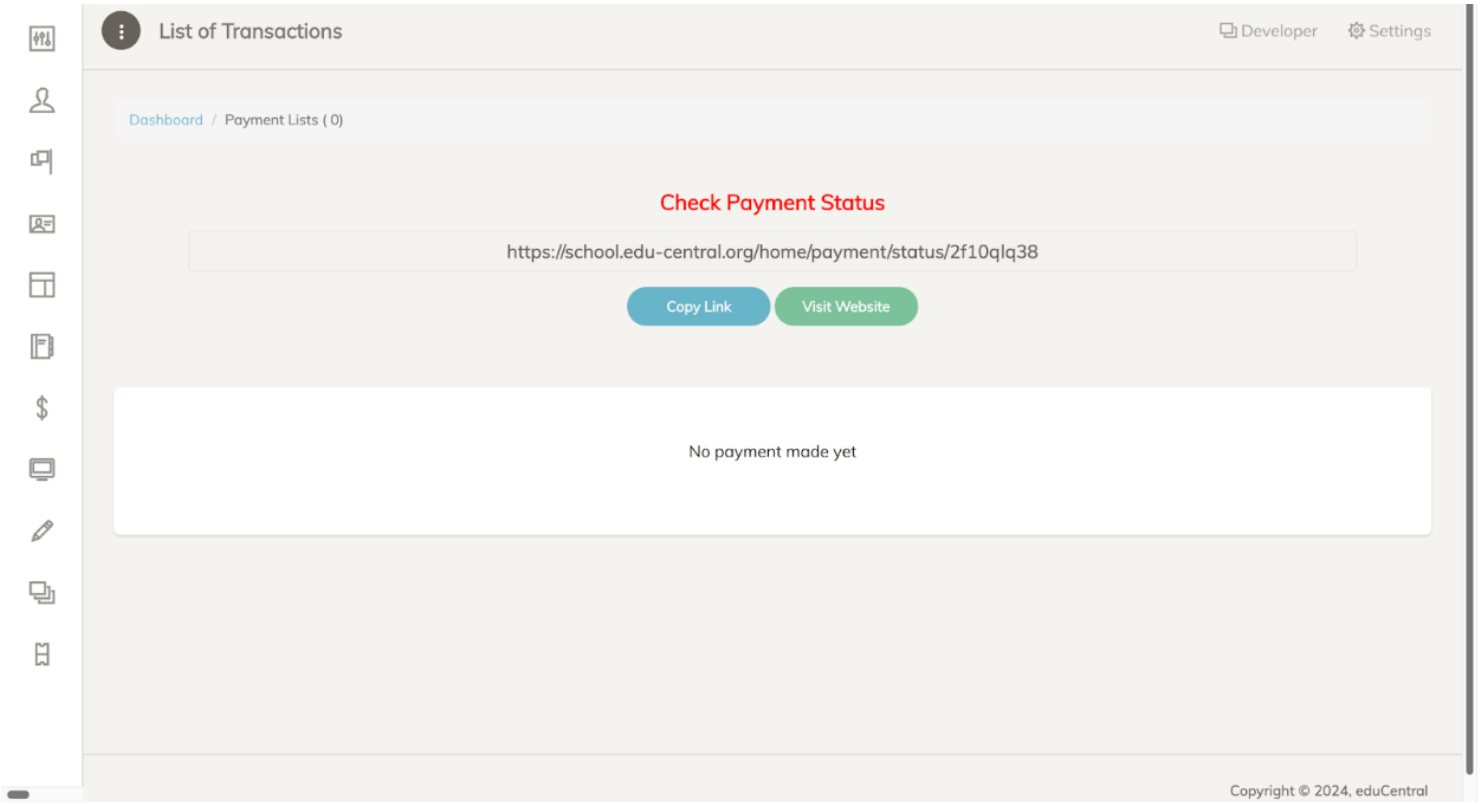
This page displays a list of all payments made by students. It also includes a link to the payment status checking site, along with a feature to copy this link.
ACCOUNT MANAGEMENT
School Payment Records
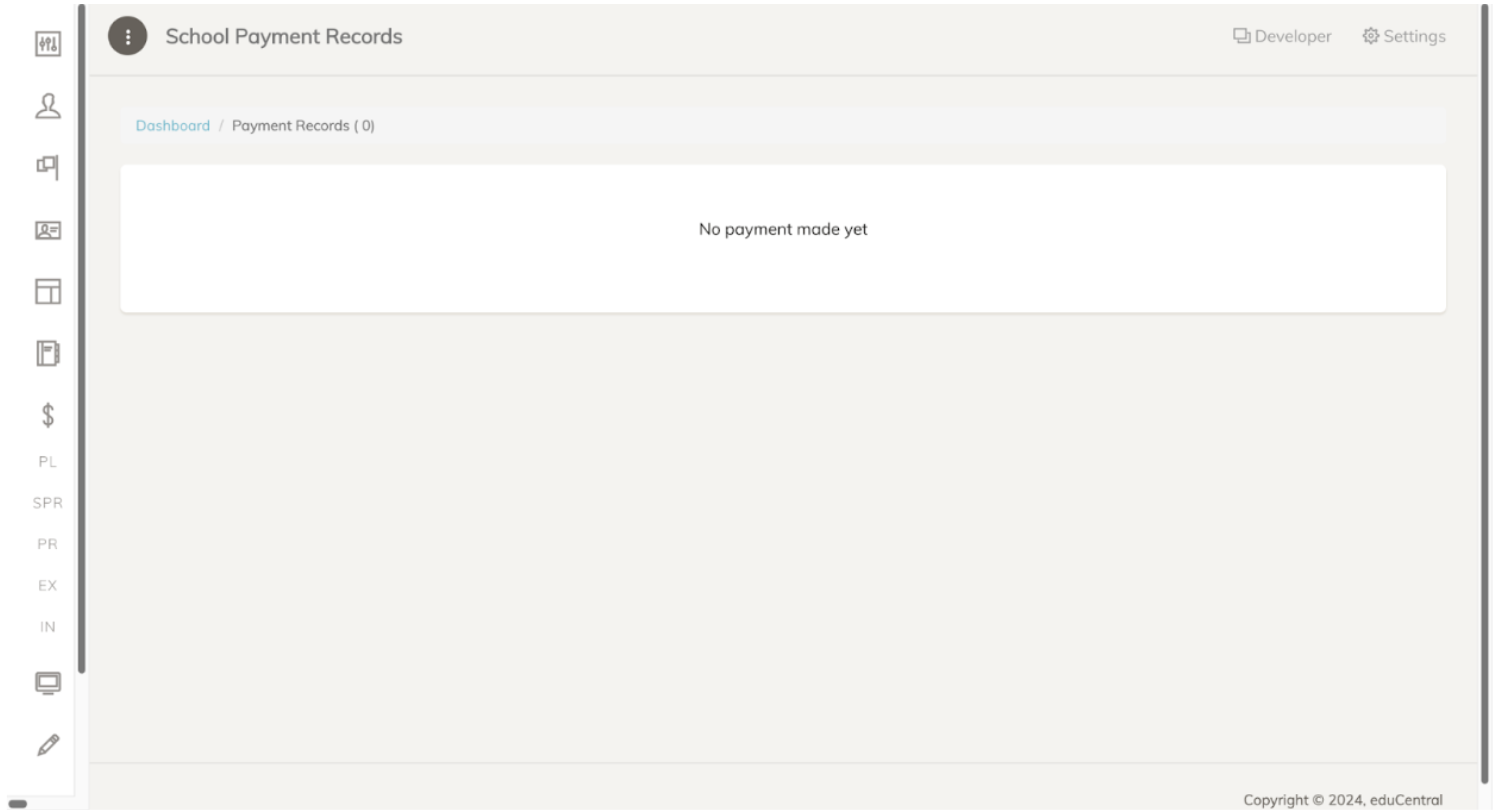
This page displays a list of all payments made by the school.
COMMUNICATIONS
Email to administrators
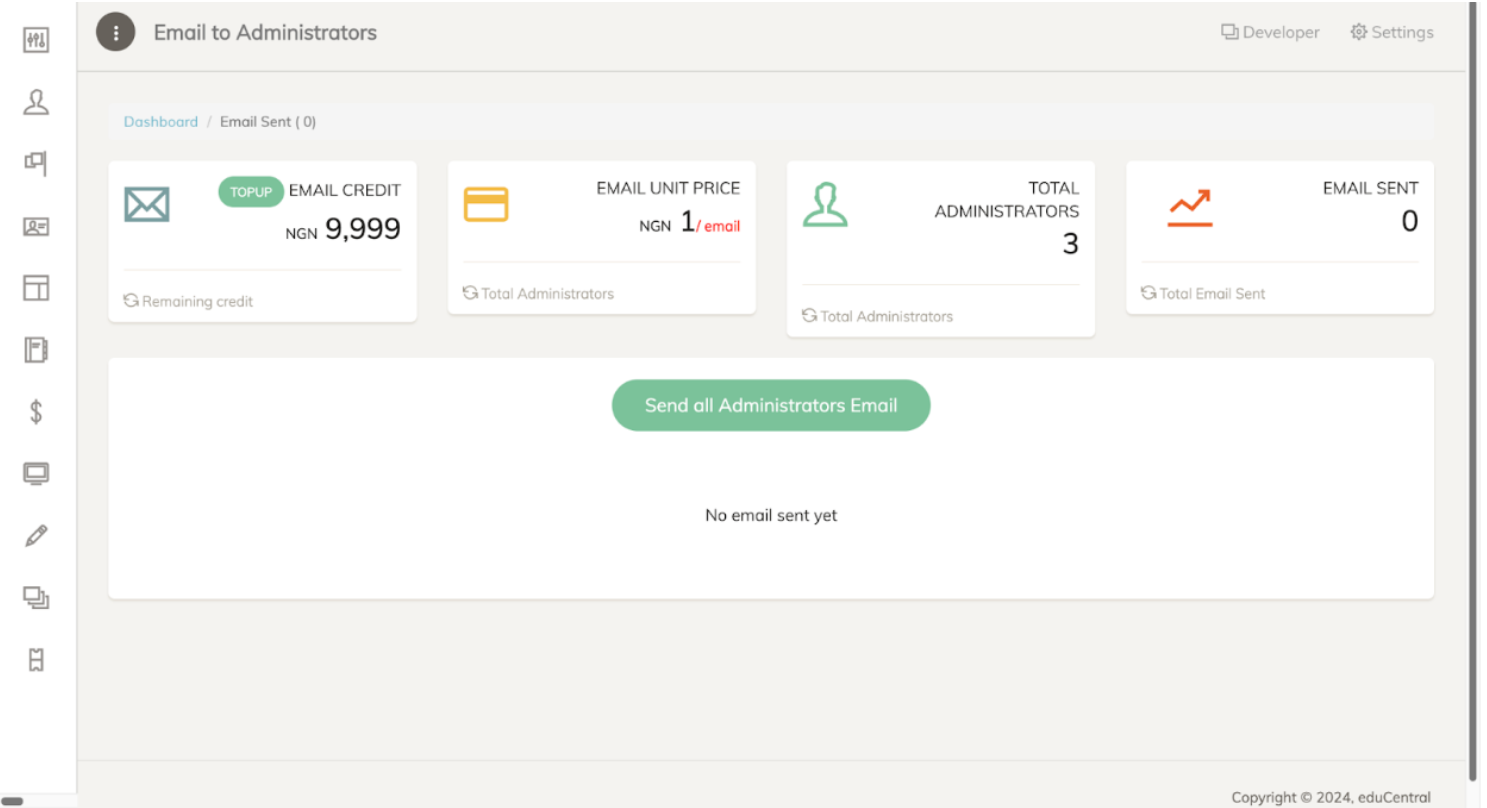
This page enables the user to send a mass email to all the administrators. Click the 'Send All Administrators Email' button to proceed. The page also displays the number of remaining email credits, the cost per email in terms of credits, the total number of administrators, and the total amount of emails sent to administrators.
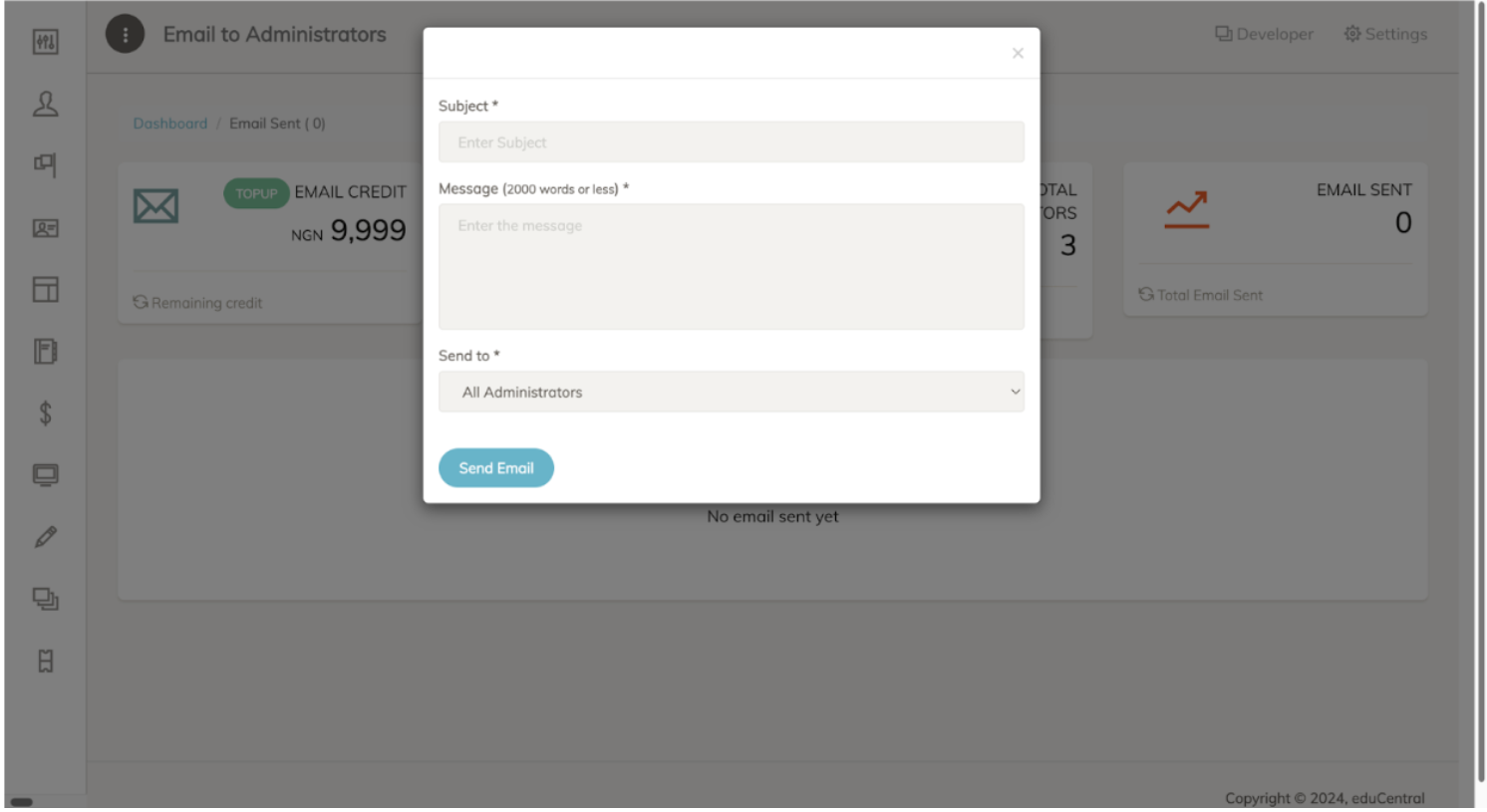
Fill out the email by providing a subject and entering your message. Then, select the option to either send it as a mass email or to specific administrators only. To send the email, click the 'Send Email' button, which is highlighted in blue.
COMMUNICATIONS
Email to Staff
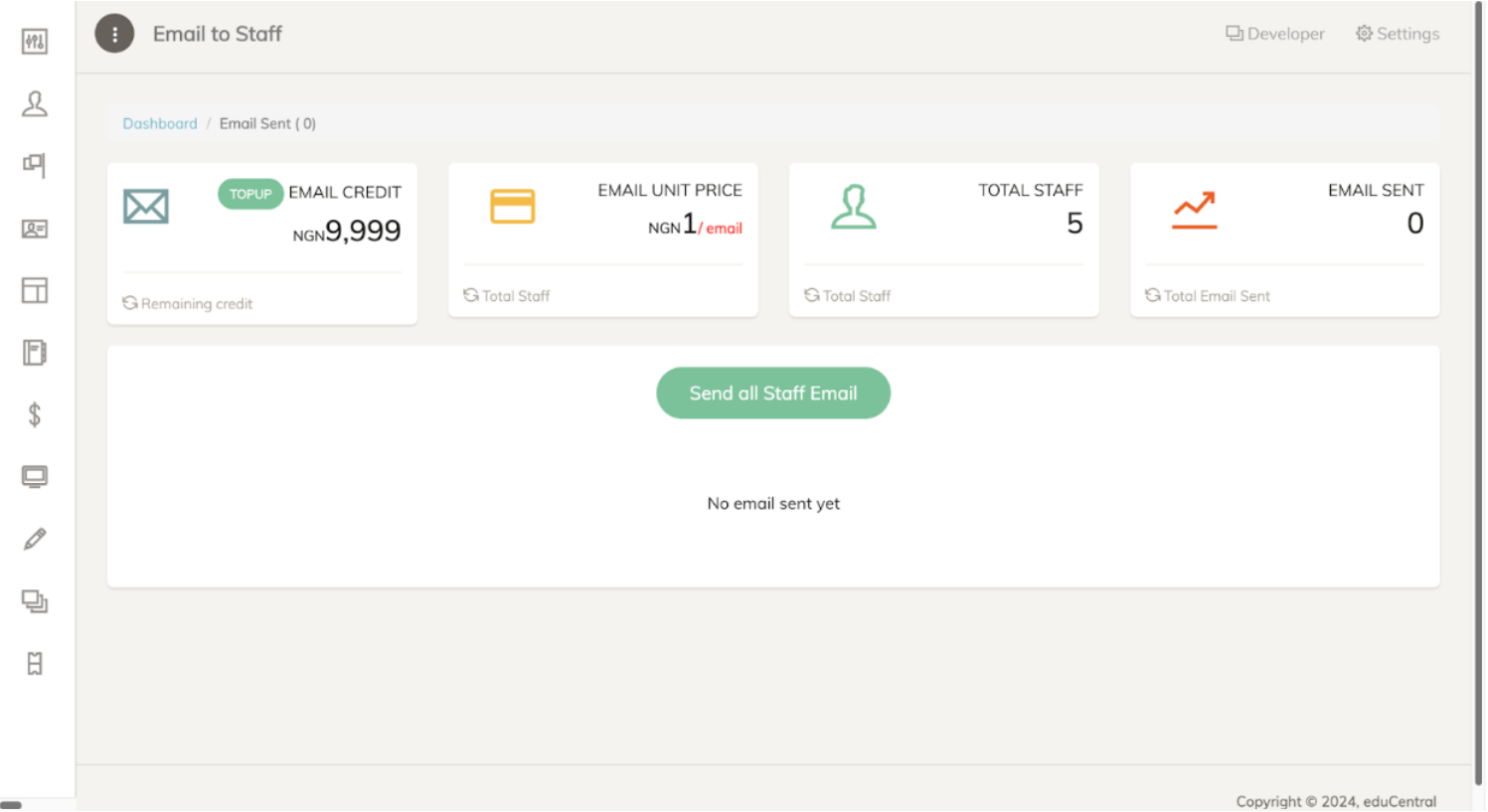
This page enables the user to send a mass email to all the staff members. Click the 'Send All Staff Email' button to proceed. The page also displays the number of remaining email credits, the cost per email in terms of credits, the total number of staff, and the total amount of emails sent to staff.
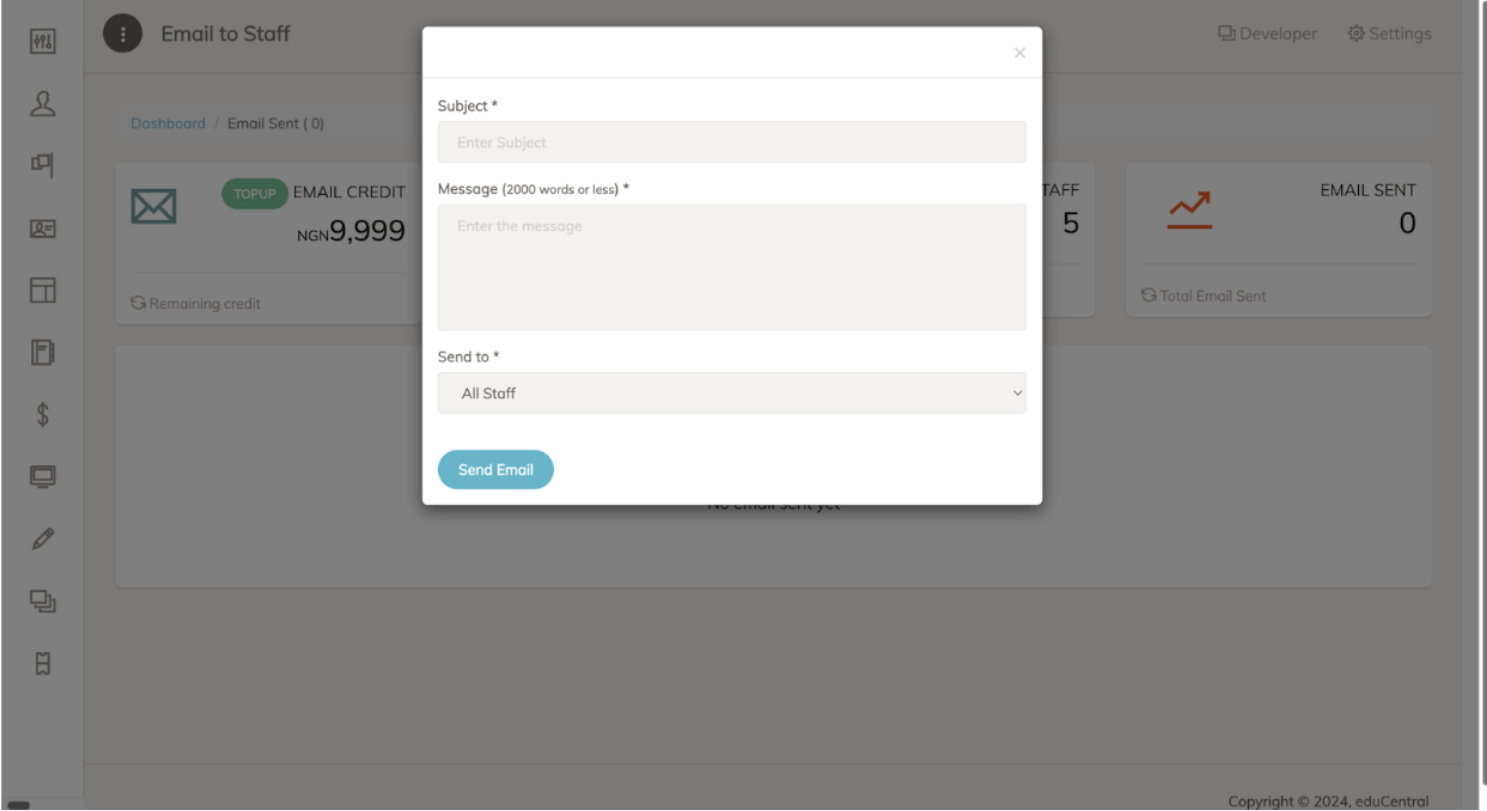
Fill out the email by providing a subject and entering your message. Then, select the option to either send it as a mass email or to specific staff only. To send the email, click the 'Send Email' button, which is highlighted in blue.
COMMUNICATIONS
Email to Parents
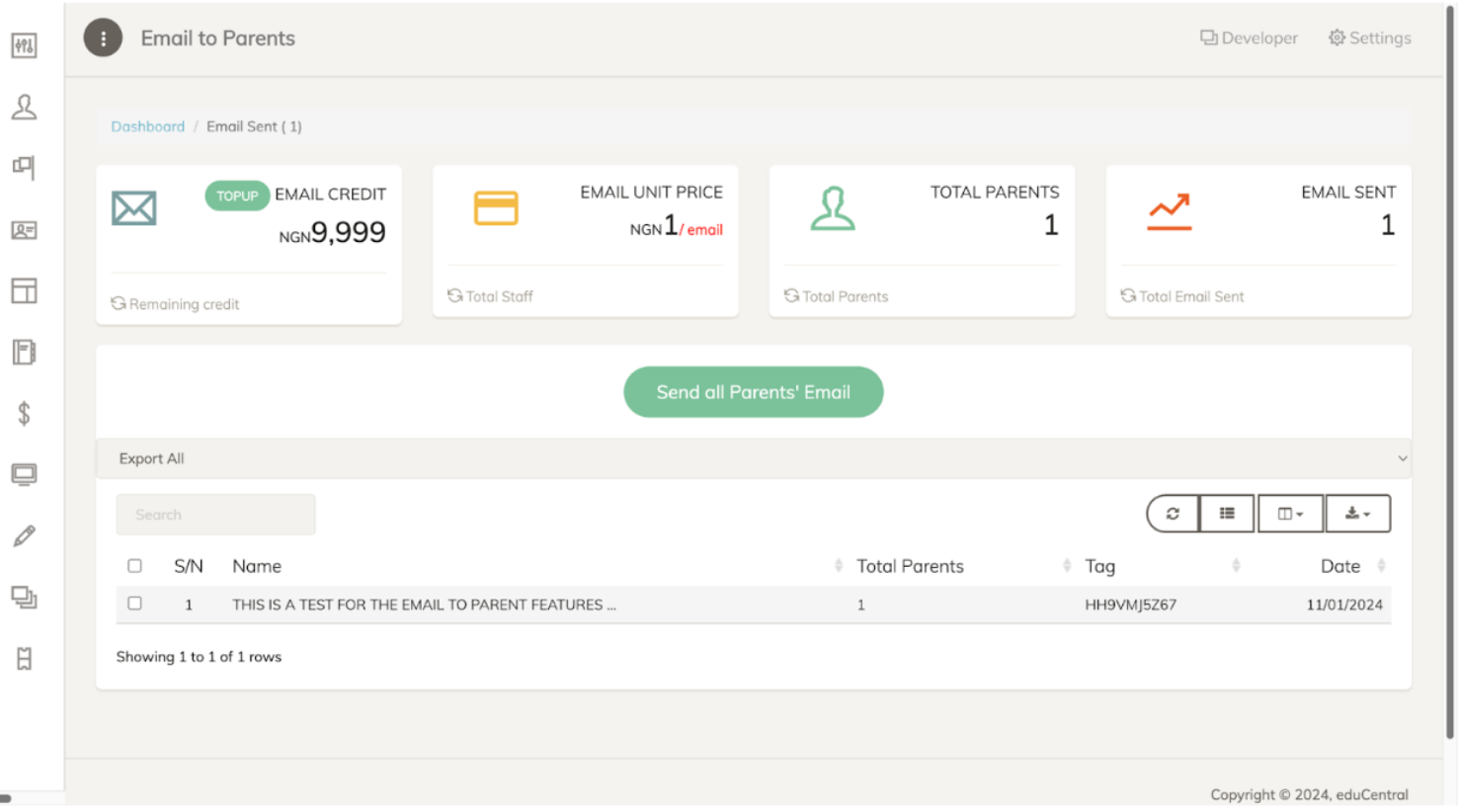
This page enables the user to send a mass email to all parents. Click the 'Send All Parents Email' button to proceed. The page also displays the number of remaining email credits, the cost per email in terms of credits, the total number of parents, and the total amount of emails sent to parents.
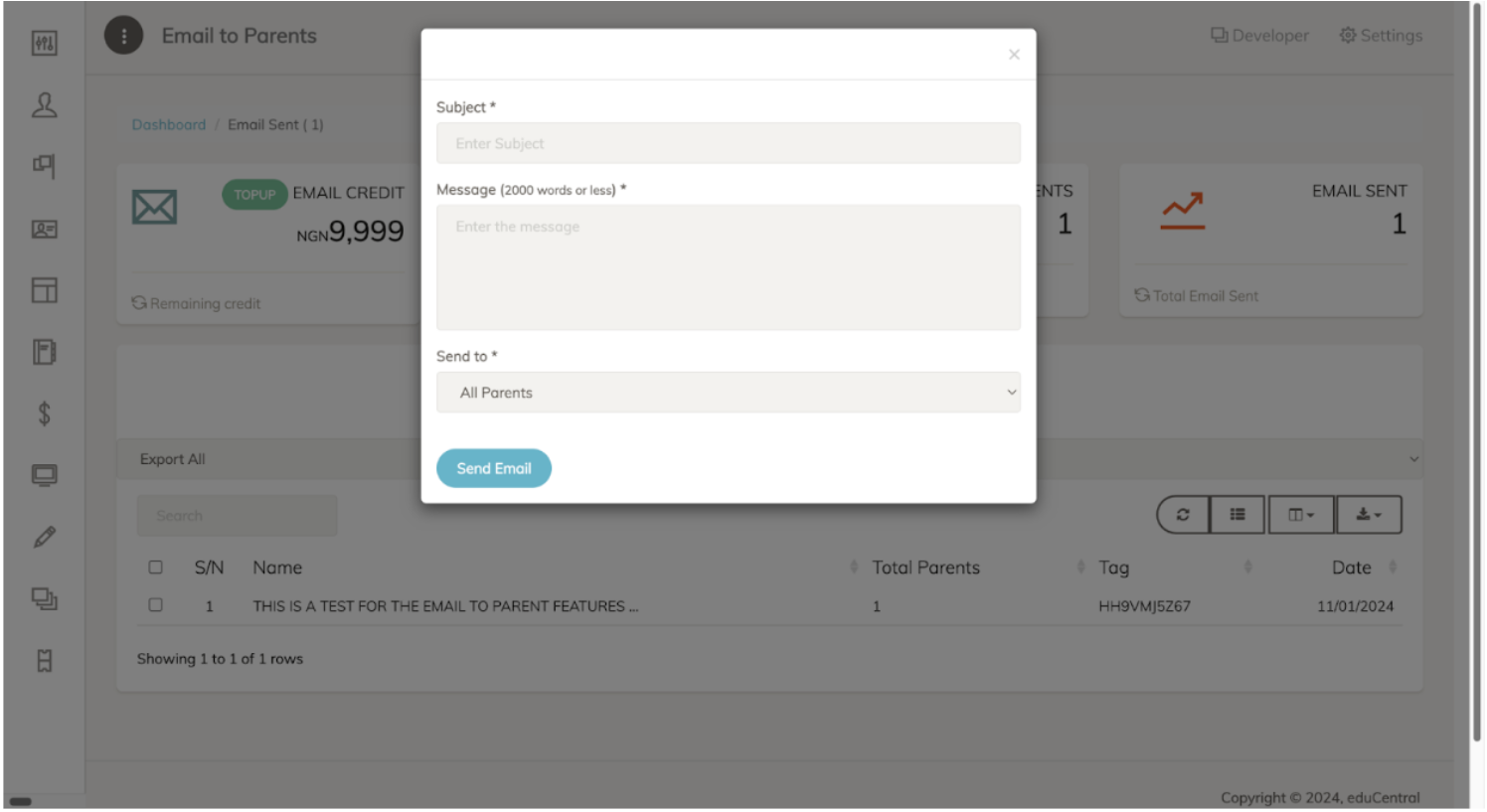
Fill out the email by providing a subject and entering your message. Then, select the option to either send it as a mass email or to specific parents only. To send the email, click the 'Send Email' button, which is highlighted in blue.
COMMUNICATIONS
SMS To Staff
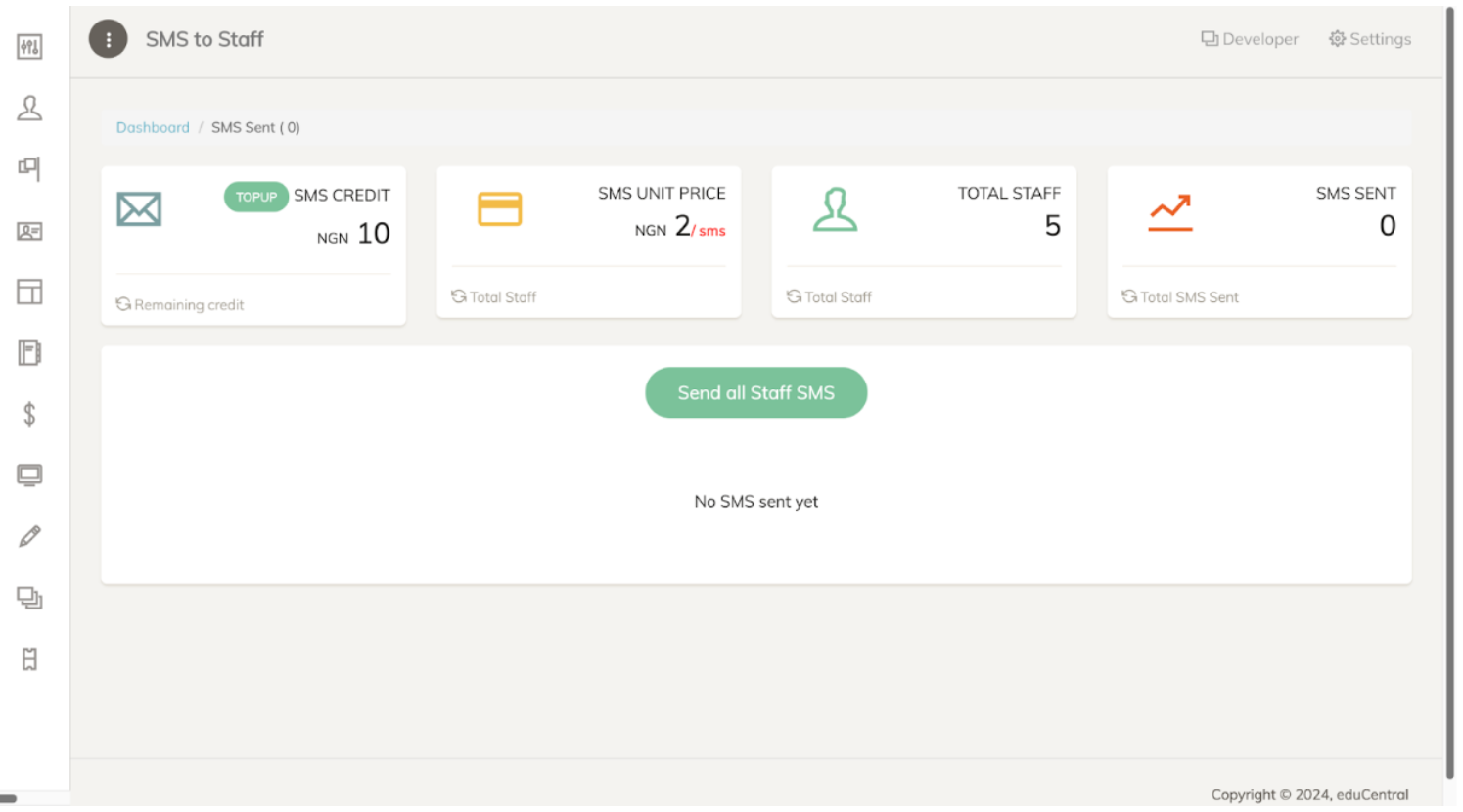
This page enables the user to send a mass SMS to all staff. Click the 'Send All Staff SMS’ button to proceed. The page also displays the number of remaining SMS credits, the cost per SMS in terms of credits, the total number of staff, and the total amount of SMS sent to staff.
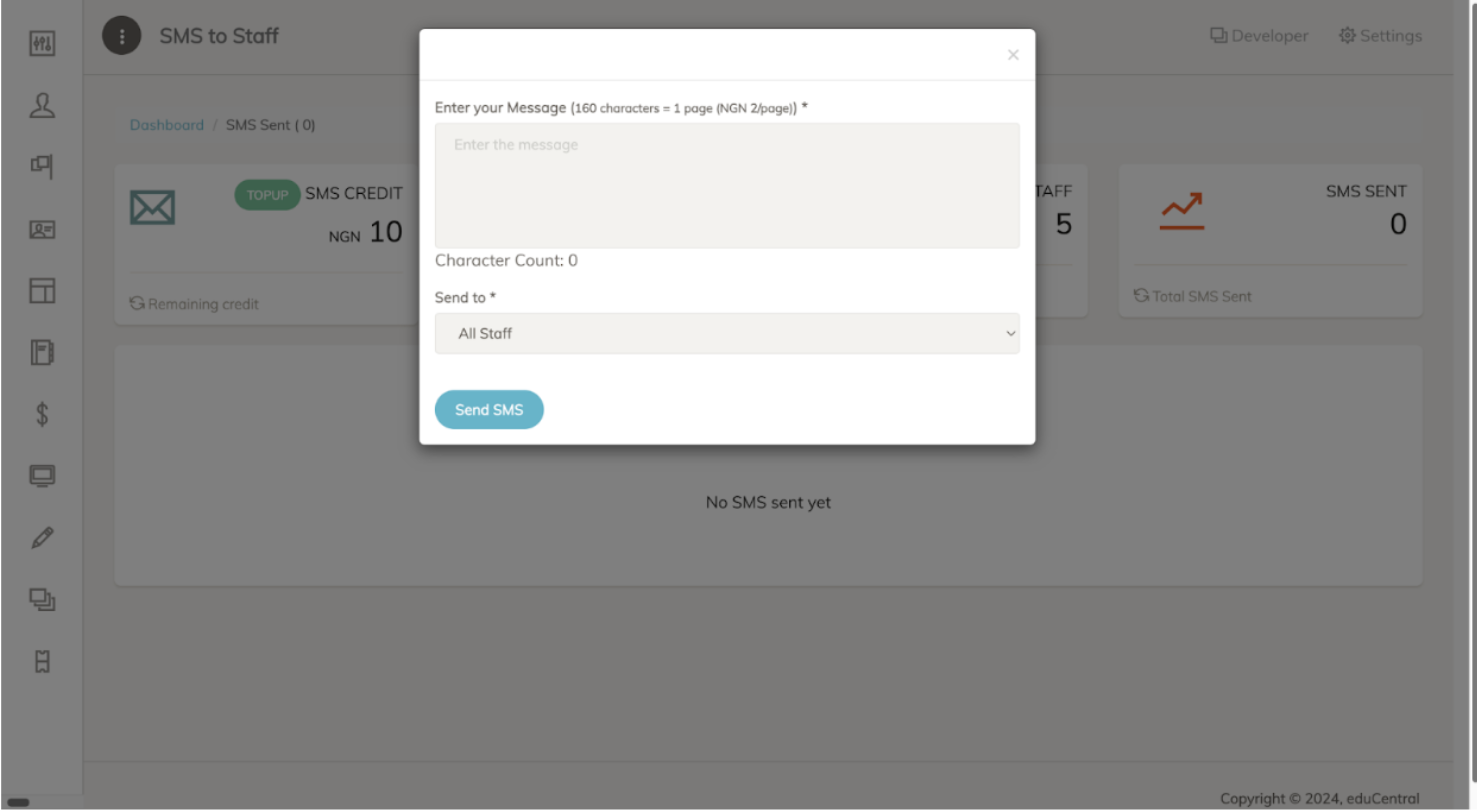
Enter the message you would like to send to the staff in the first input area. Then, choose whether to send a mass SMS to all staff members or only to selected staff. To send the SMS, click the 'Send SMS' button, which is highlighted in blue.
CLASSROOM MANAGEMENT
Classroom
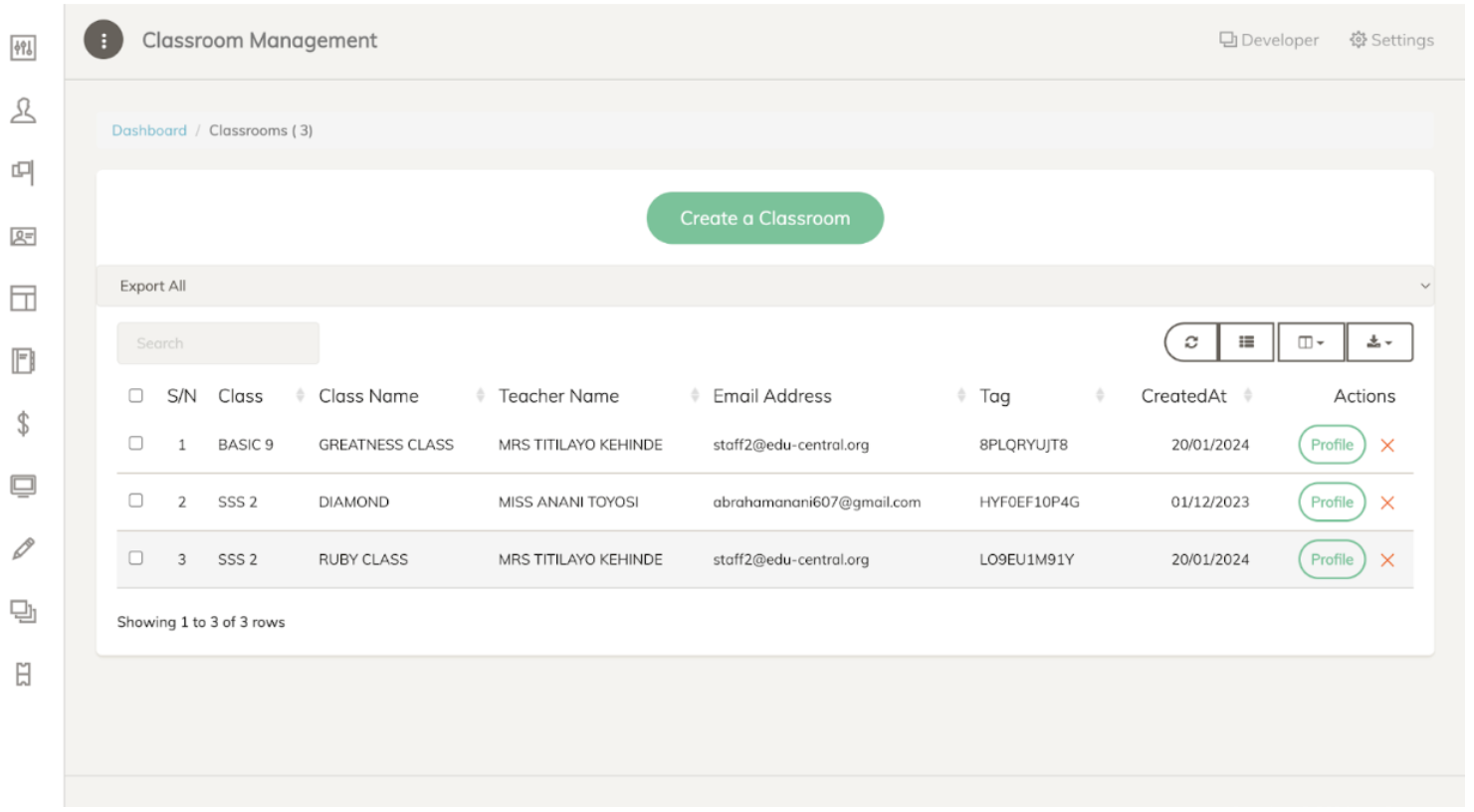
This page displays a list of all the classrooms registered at the school. Users can create a new classroom by clicking the 'Create a Classroom' button, which is highlighted in green at the top of the page. Additionally, it is possible to view the profile of specific classrooms. Users can search for a particular classroom and filter results using the listed attributes. Furthermore, the page provides an option to download the list of classrooms.
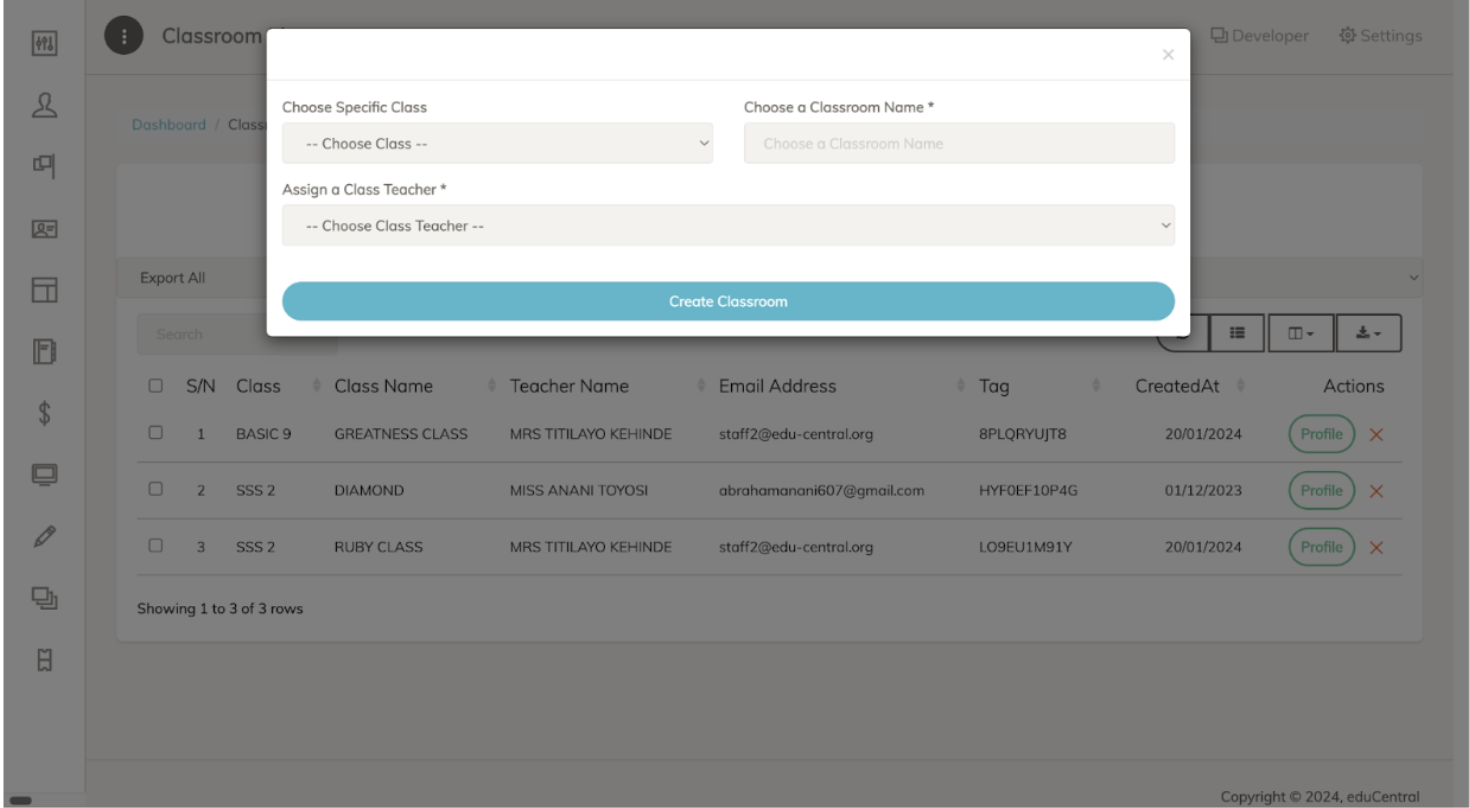
To create a classroom, select the type of classroom, add a name for the classroom, and assign a teacher to it. To officially add the classroom, click the 'Create Classroom' button, which is highlighted in blue at the bottom of the pop-up window.
CLASSROOM MANAGEMENT
School Subjects
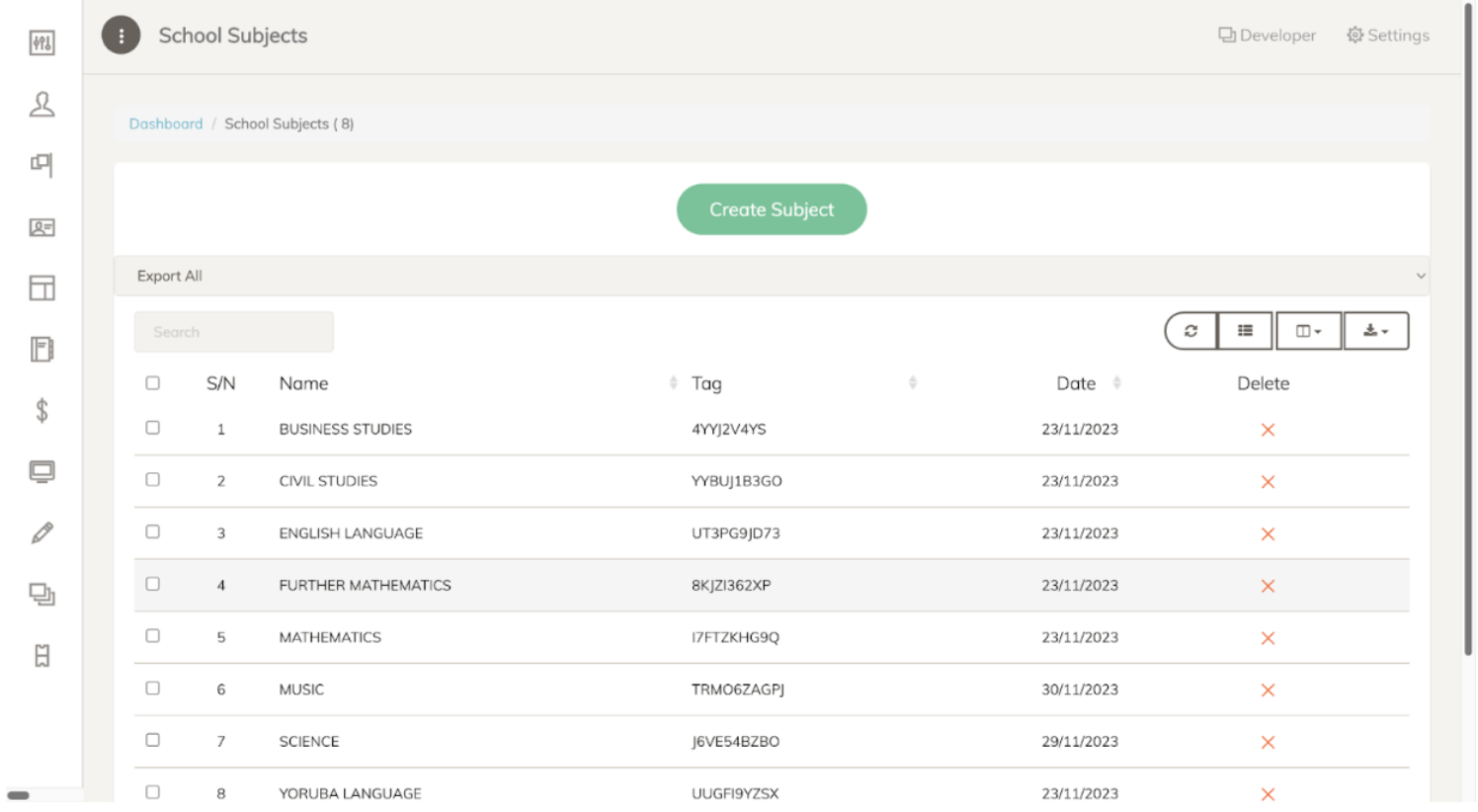
This page displays a list of all the subjects offered at the school. Users can add a new subject by clicking the 'Create Subject' button, highlighted in green at the top of the page. The page also allows users to search for a specific subject and filter results using the listed attributes. Additionally, there is an option to download the list of subjects. If necessary, users can also delete a subject.
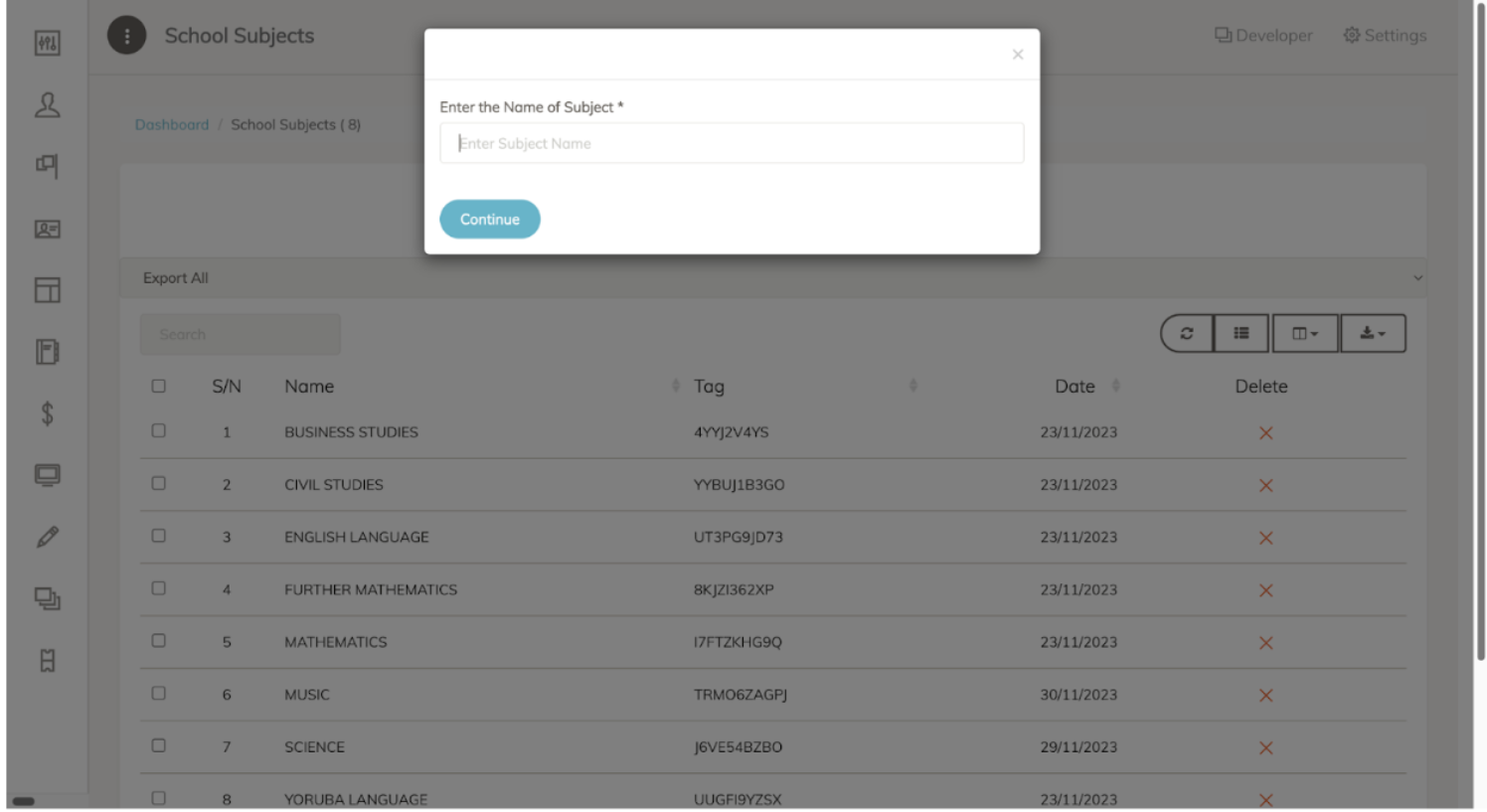
To add a new subject, simply enter a name for it. Then, click the 'Continue' button, highlighted in blue at the bottom of the pop-up window, to add the subject.
SCHOOL TOOLS
Home Page
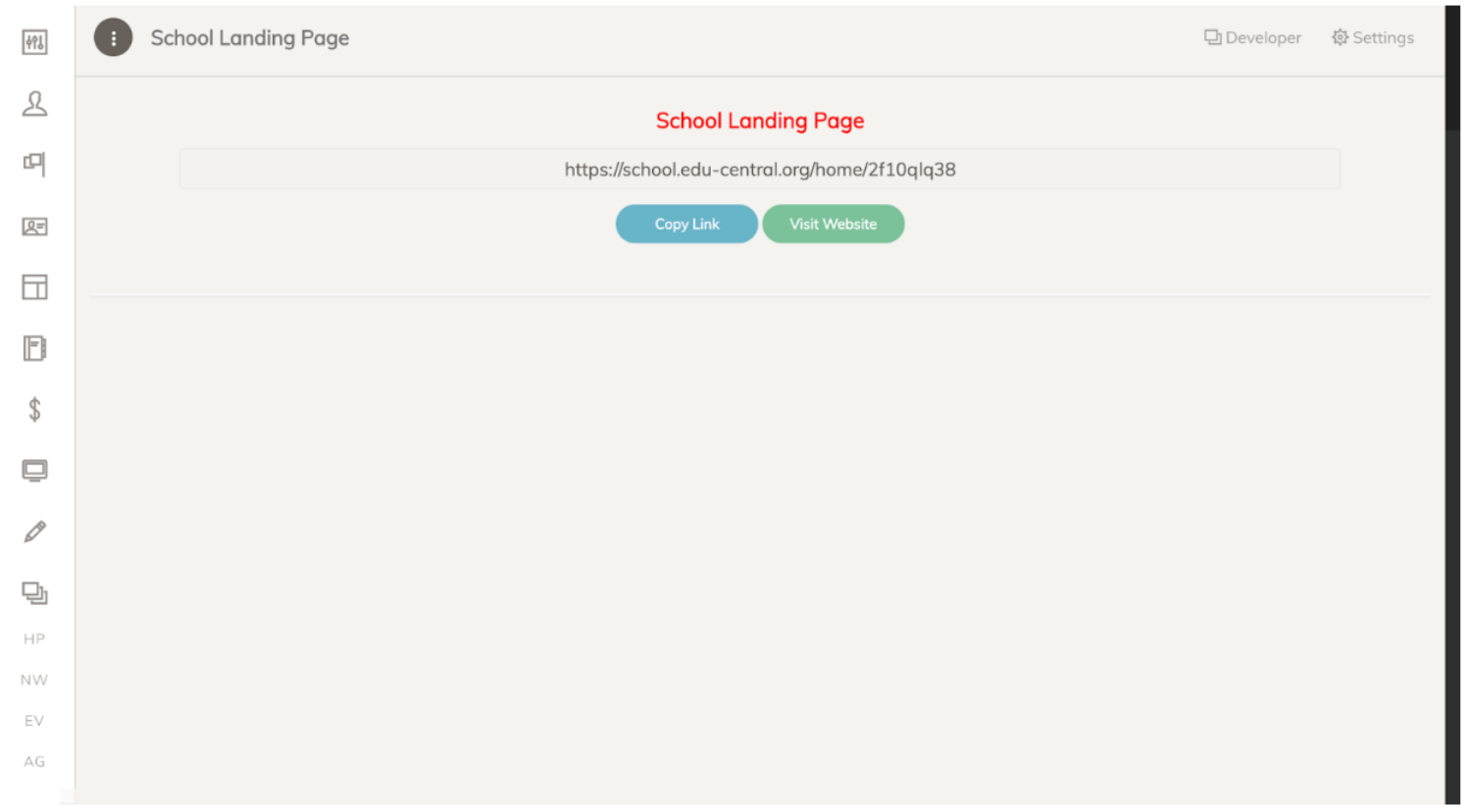
This page provides a link to the school's homepage and also includes an option to copy the link to the page.

SCHOOL TOOLS
News and Blog
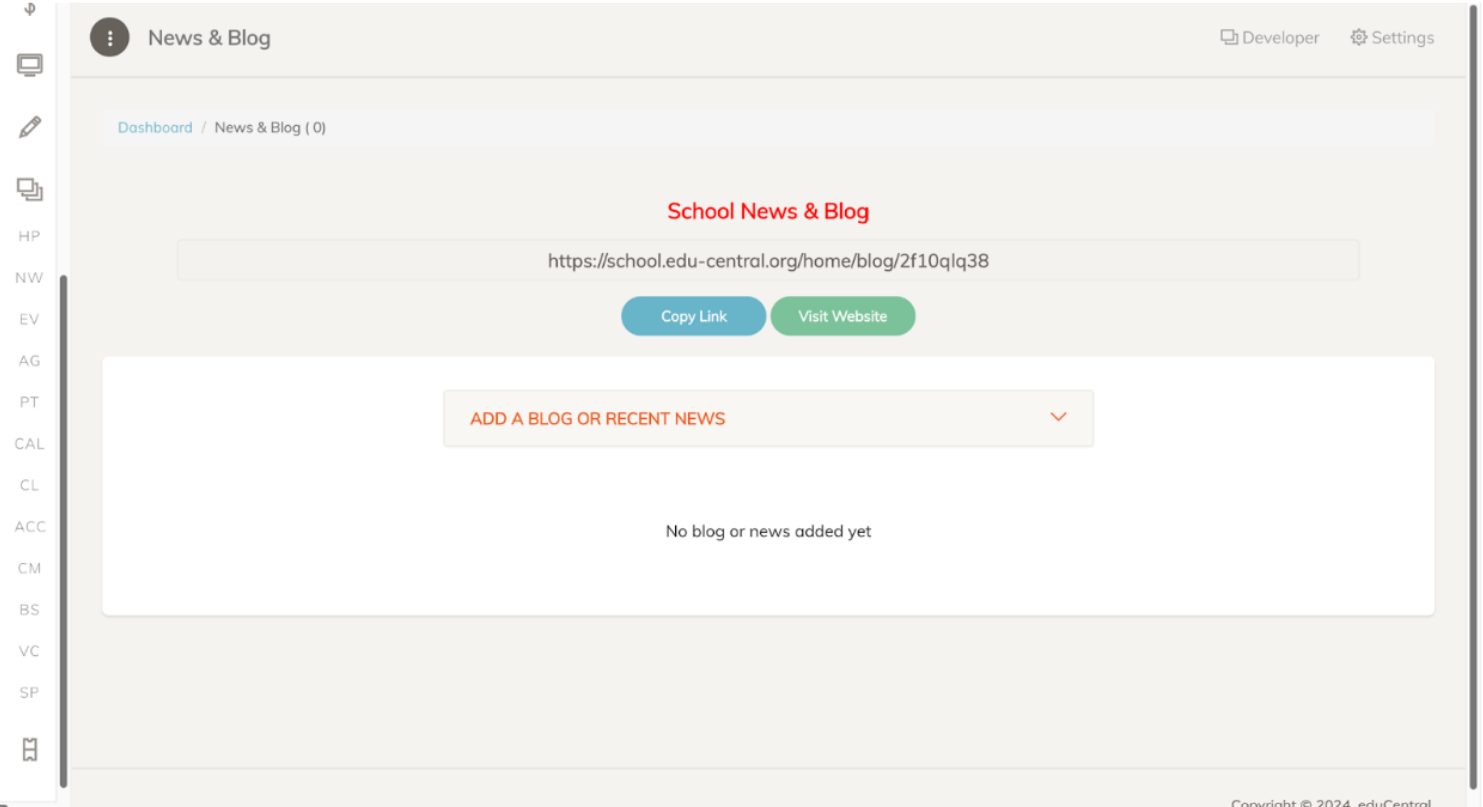
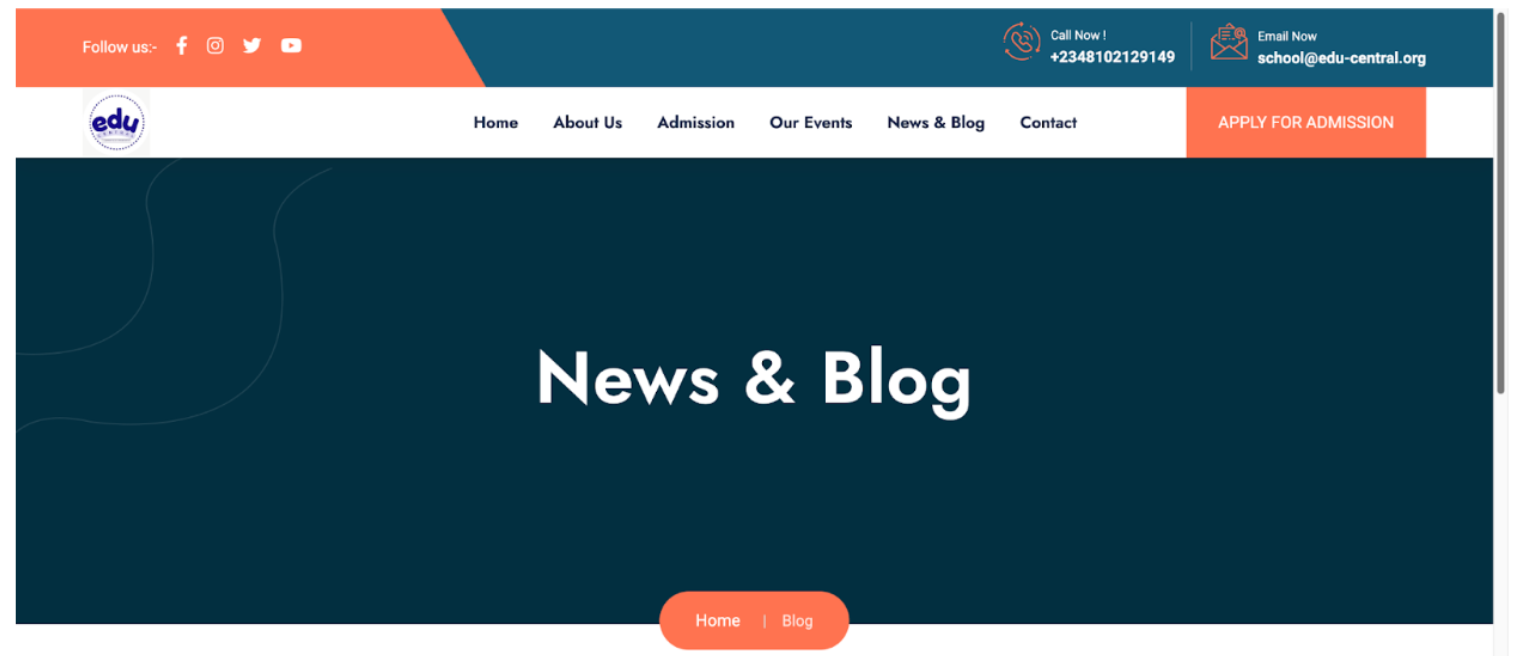
This page includes a link to the school's News and Blog site, along with an option to copy the link. Additionally, users have the option to add a blog post by clicking on the 'Add A Blog Or Recent News' dropdown tab.
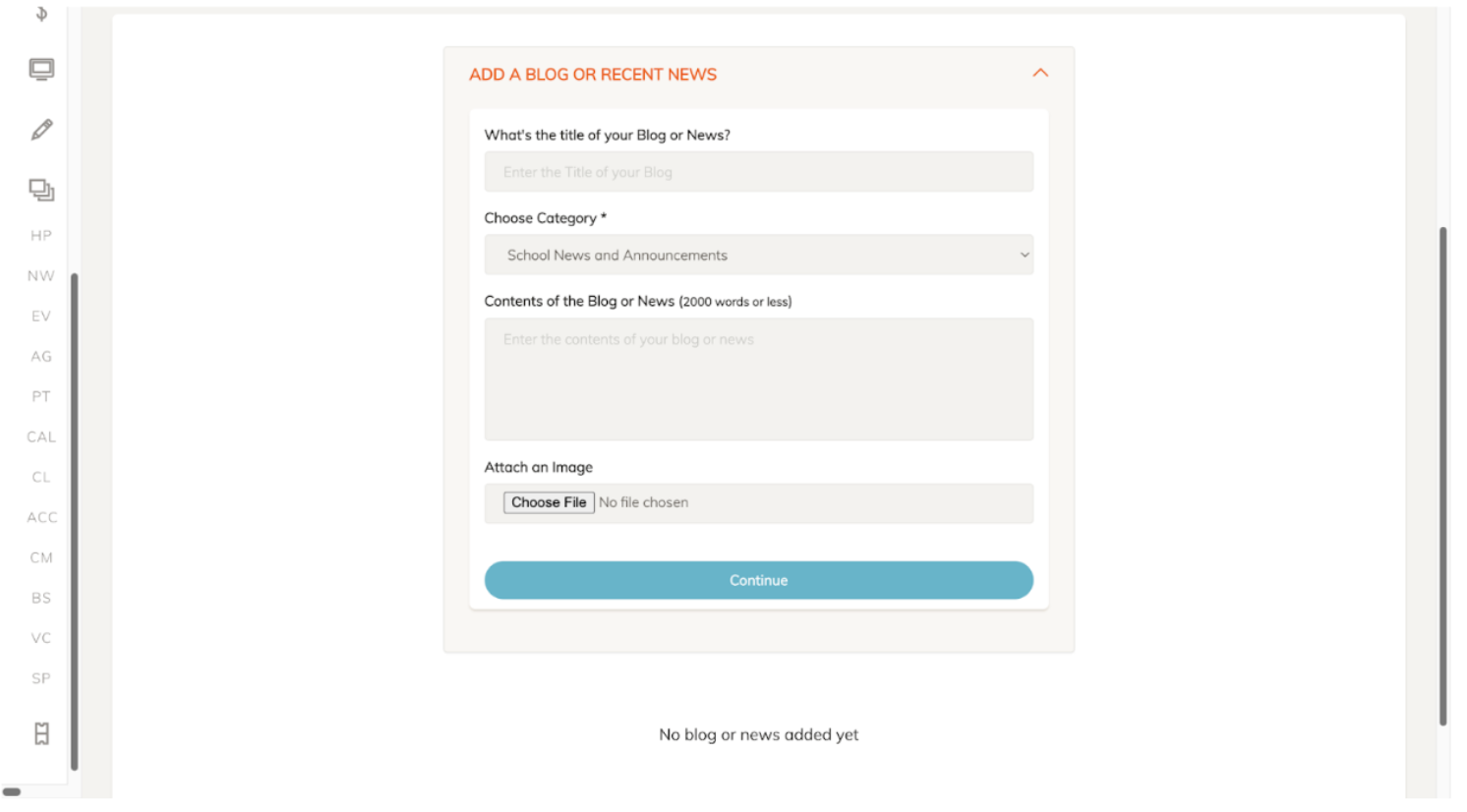
To add a blog post, enter a title, select the appropriate category, and input the contents of the blog or news. There is also an option to attach an image by clicking the 'Choose File' button. To finalize the post, click the 'Continue' button, which is highlighted in blue.
SCHOOL TOOLS
Events
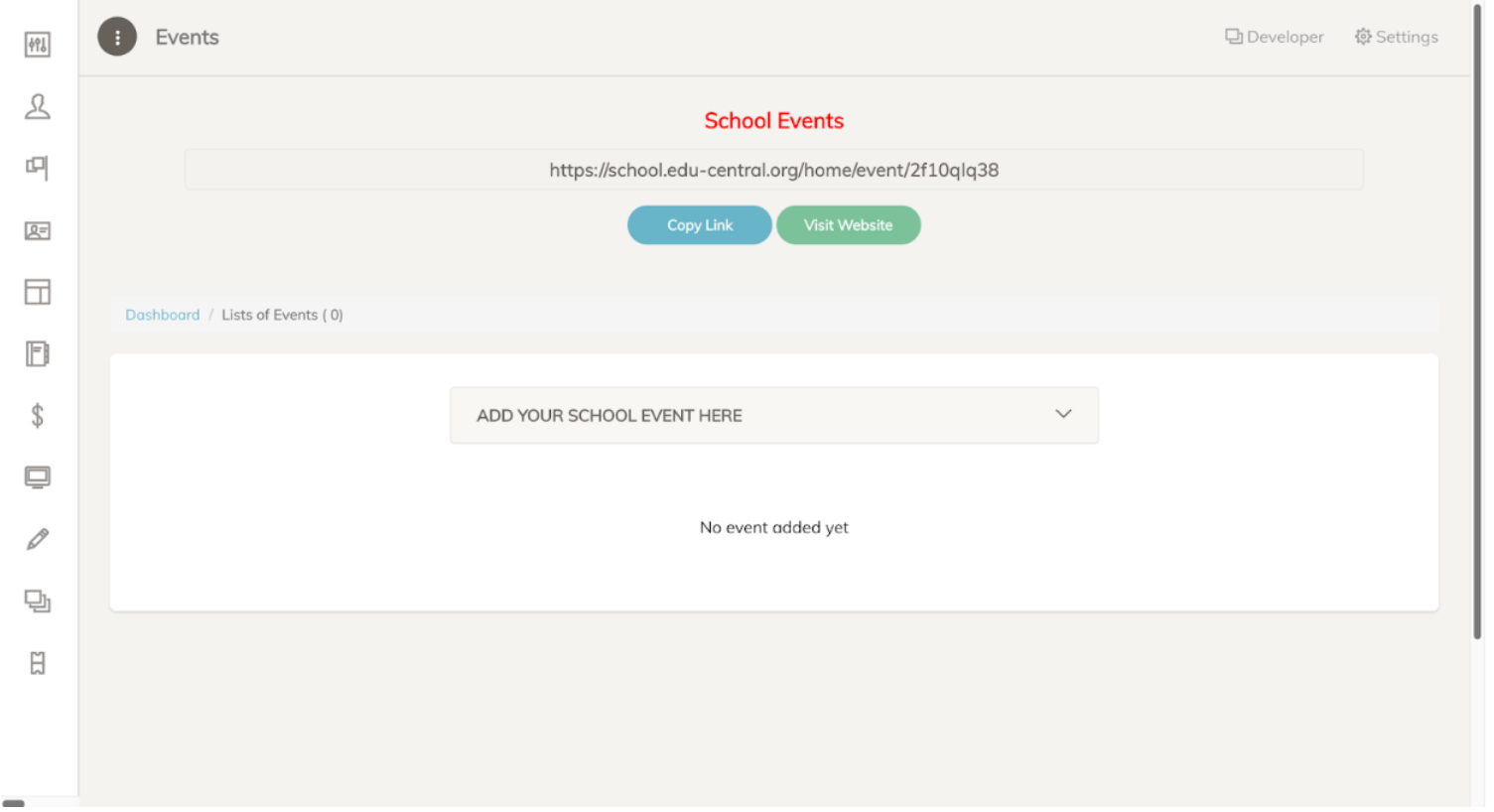
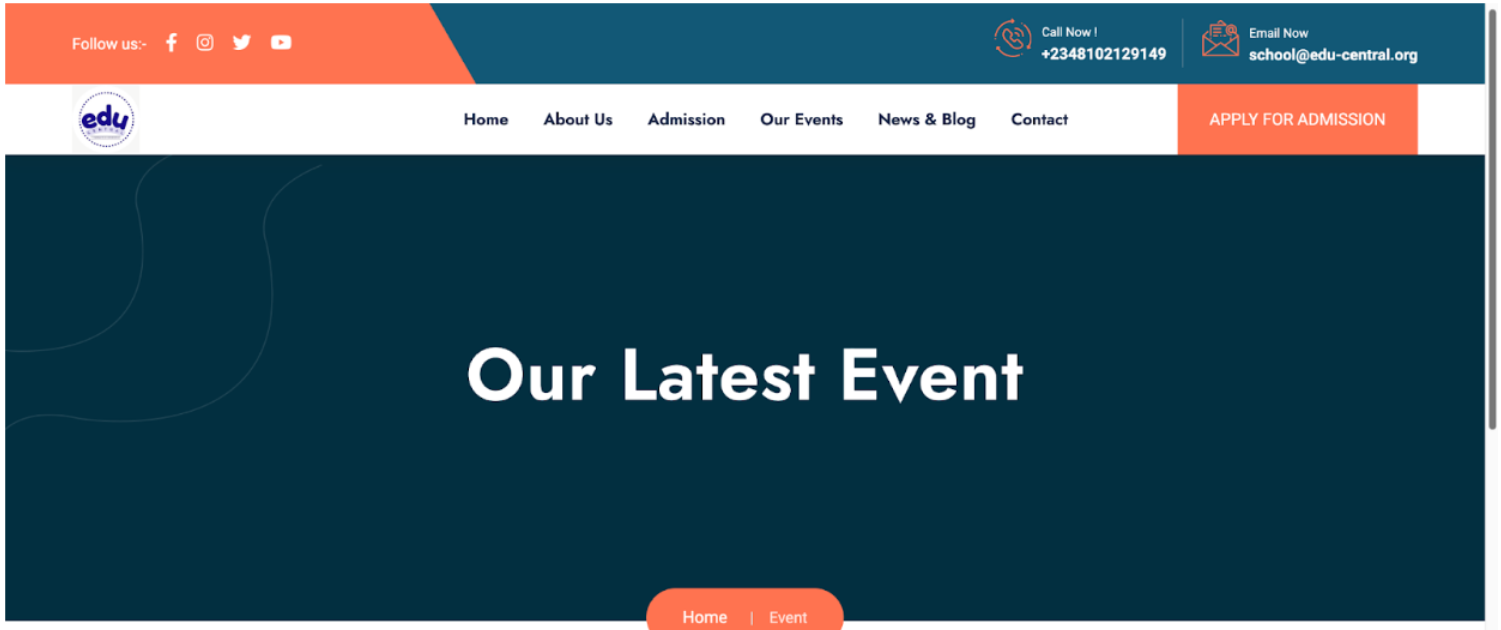
This page features a link to the school's Events site, complete with an option to copy the link. Furthermore, users can add a school event by clicking the 'Add Your School Event Here' dropdown tab.
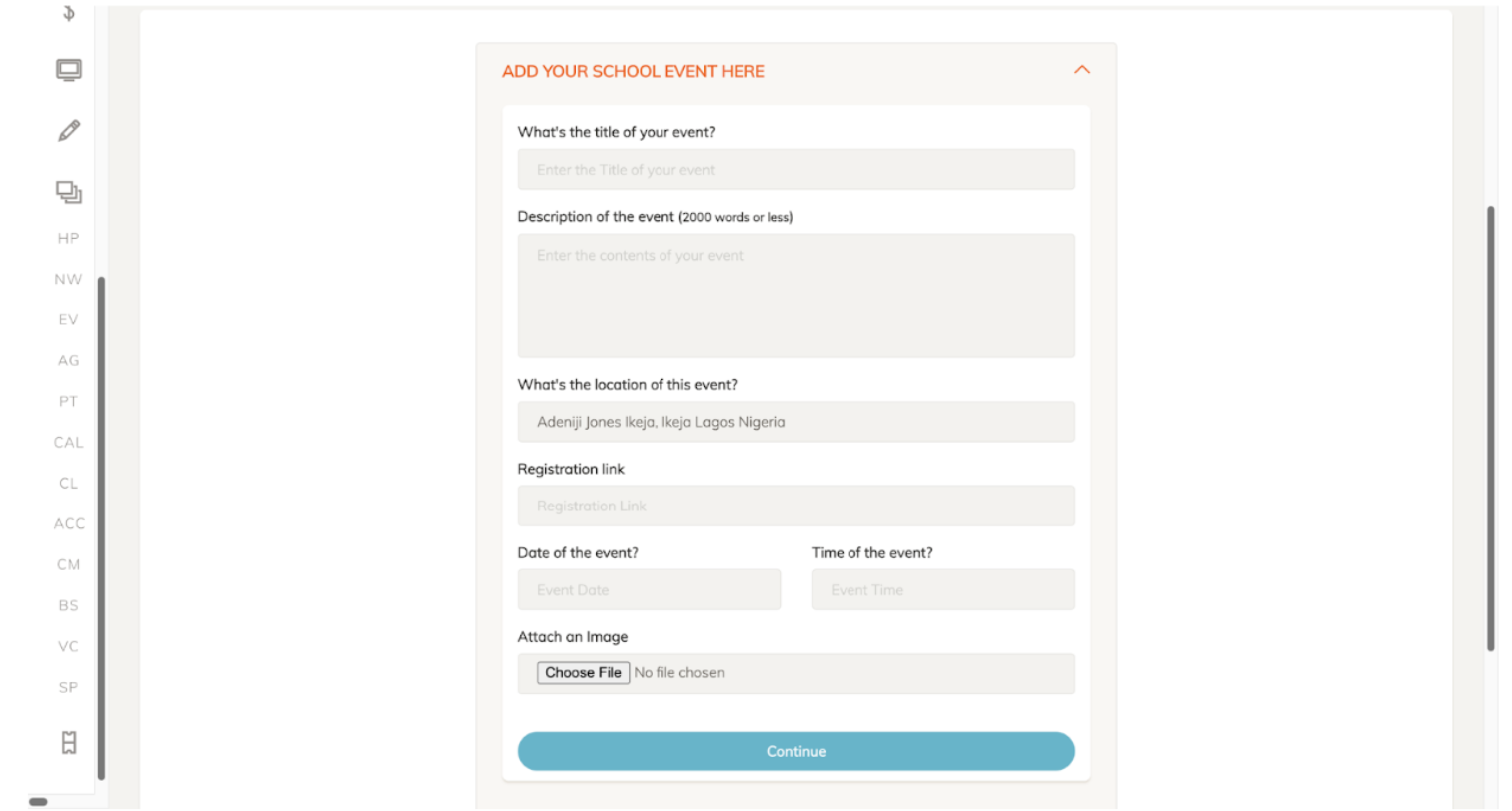
To add a school event, enter the title of the event, its description, location, registration link, date, and time. There is also an option to attach an image by clicking the 'Choose File' button. To finalize the event, click the 'Continue' button, which is highlighted in blue.
SCHOOL TOOLS
Ask GPT

Ask GPT is an AI chatbot that enables users to ask any questions regarding a topic and provides answers to those questions.
SCHOOL TOOLS
Periodic Table
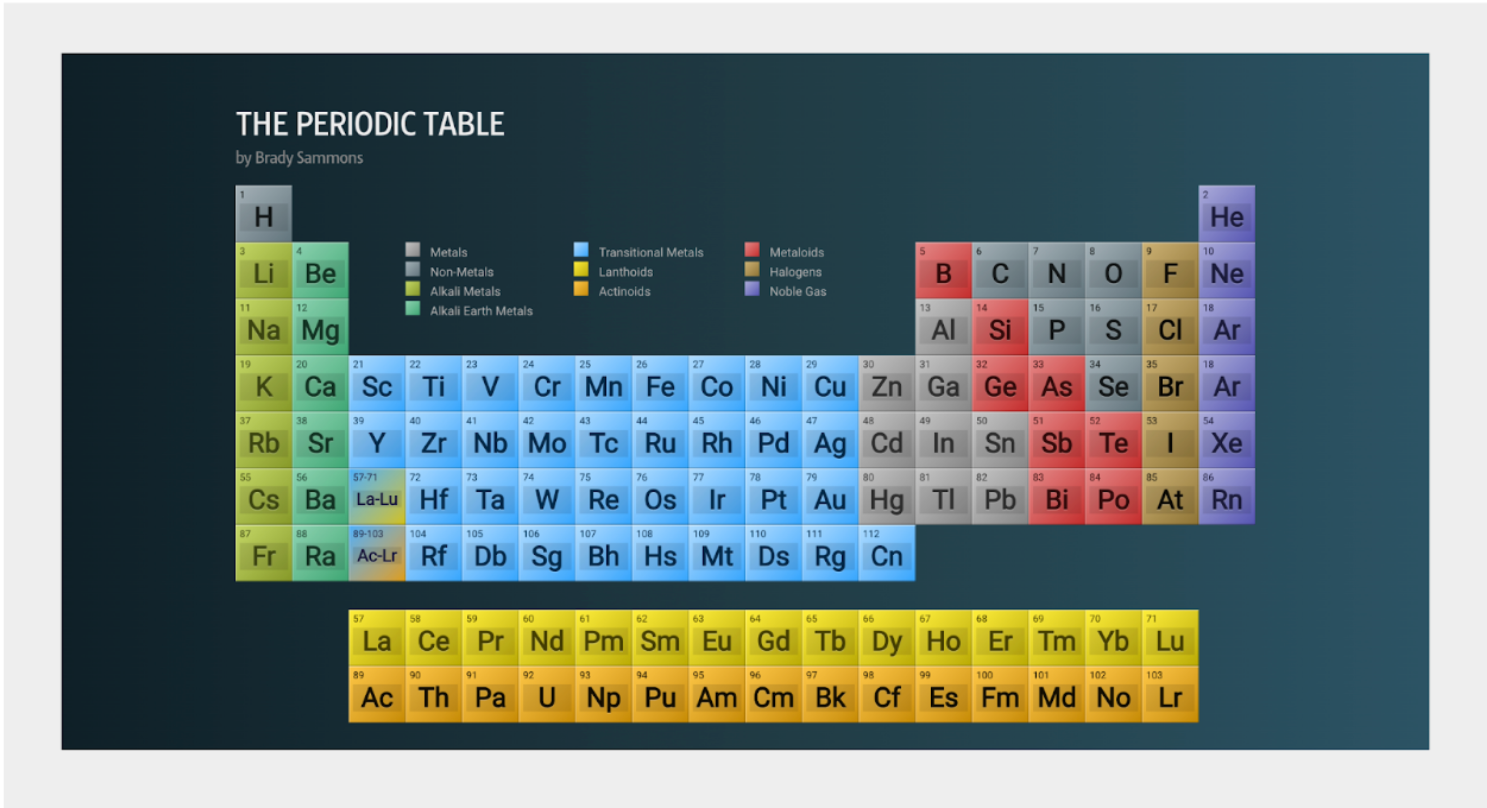
The 'Periodic Table School Tool' is a link to a standard periodic table, which is beneficial for students taking science-related classes, such as chemistry.
SCHOOL TOOLS
Simple Calculator
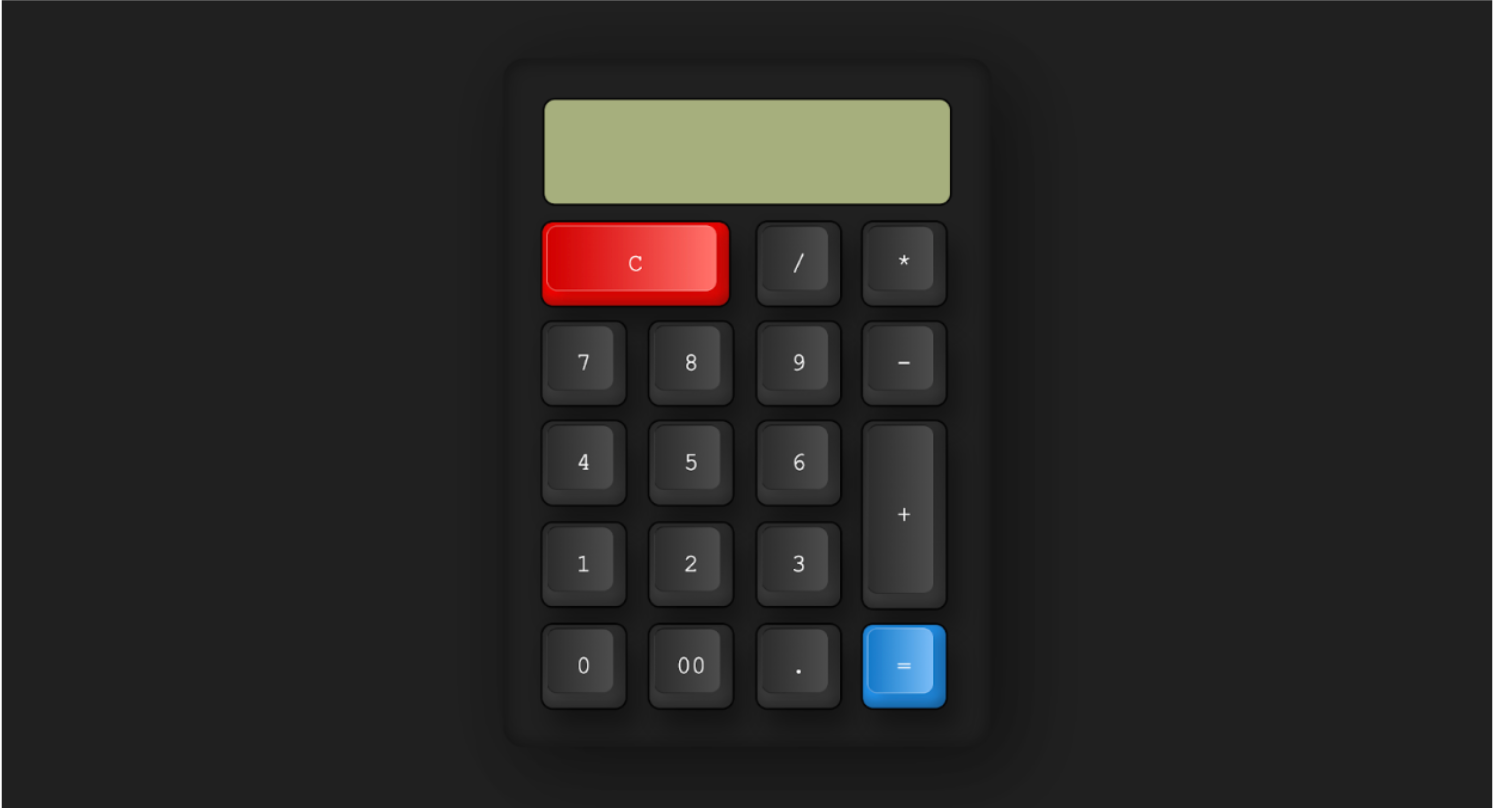
The 'Simple Calculator School Tool' is a link to a basic calculator that performs simple arithmetic operations.
SCHOOL TOOLS
Customize Link
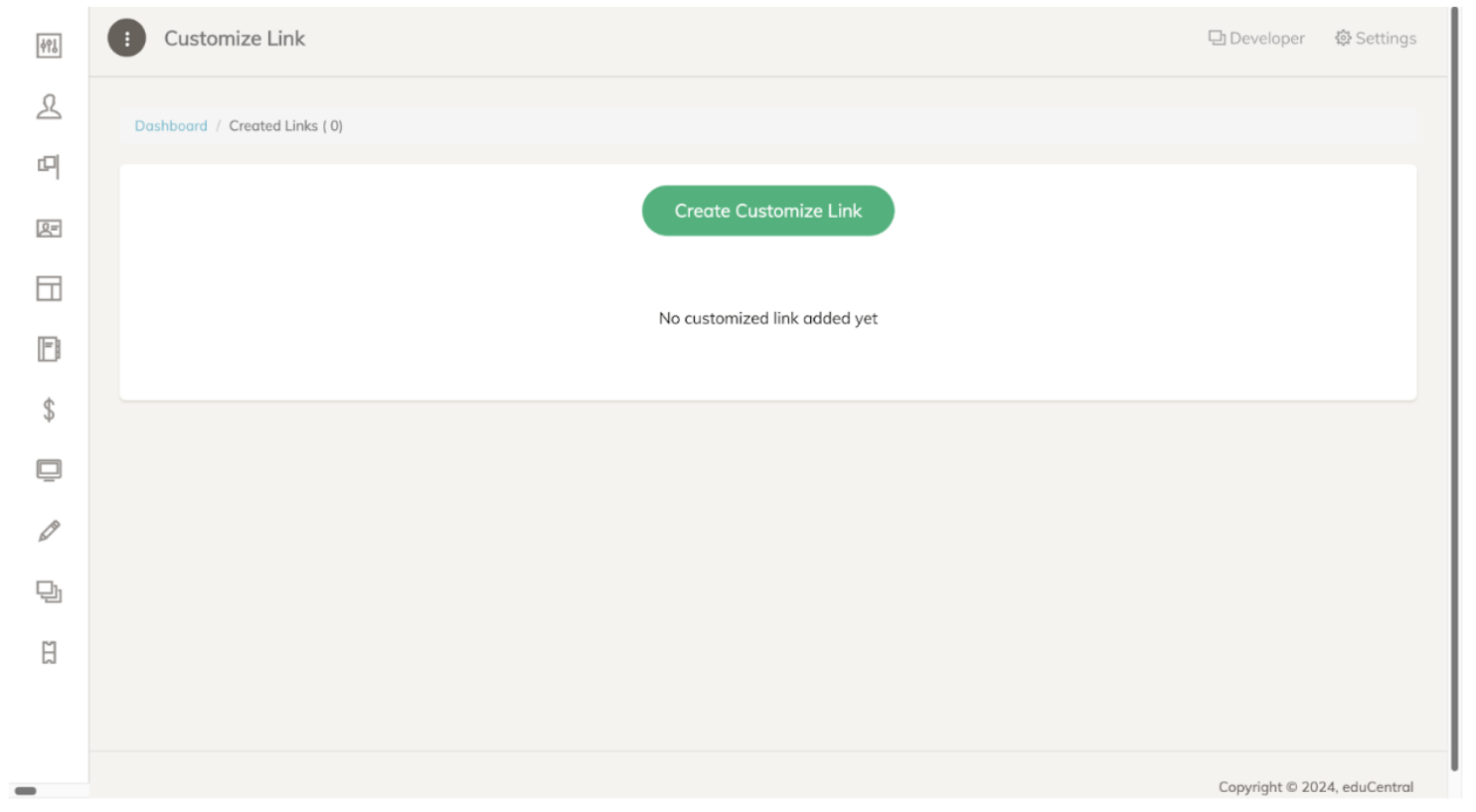
The 'Customize Link' page allows you to create a custom link. To create one, click the 'Create Custom Link' button, which is highlighted in green.
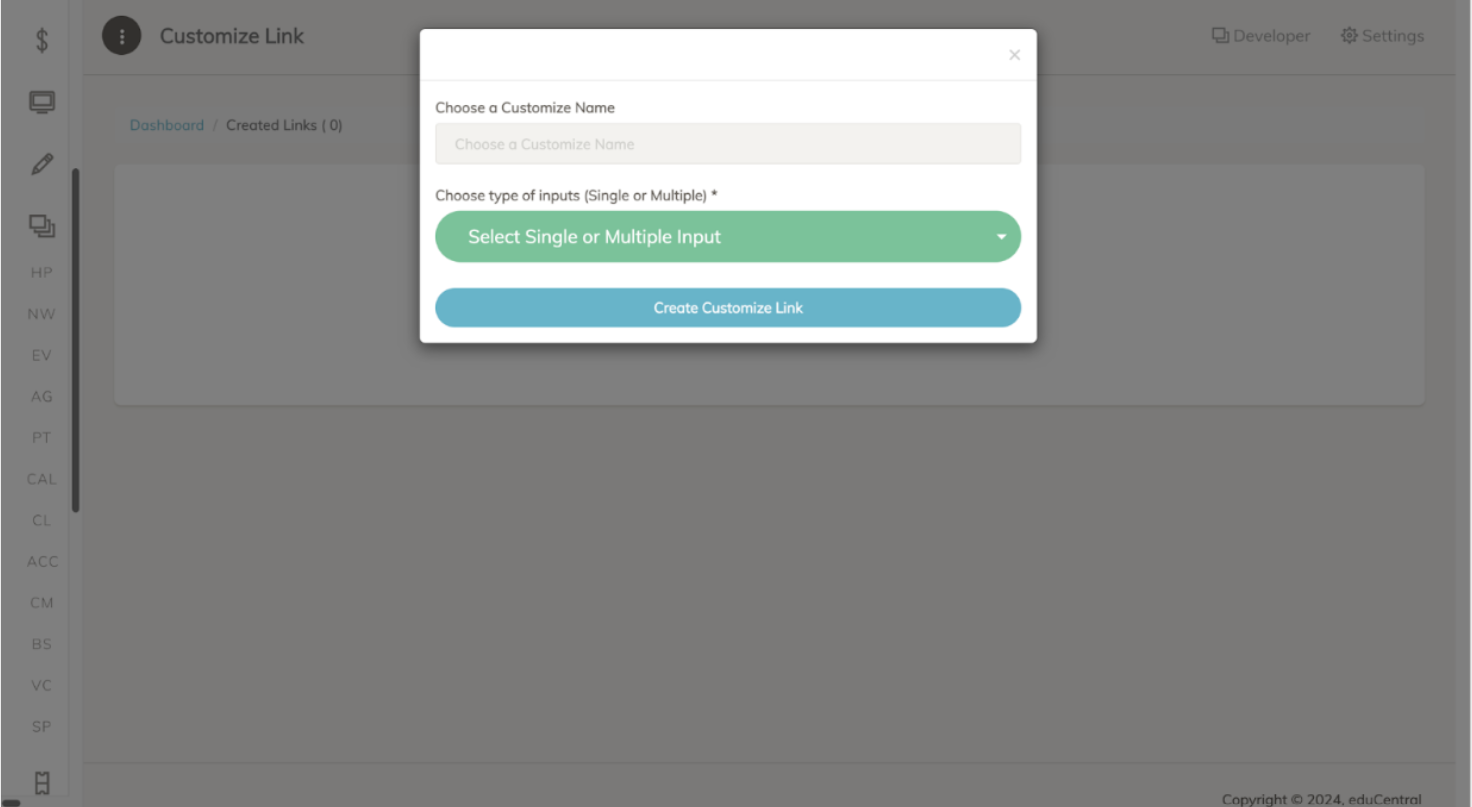
To create a custom link, enter a name for the link and click the 'Select Type of Inputs (Single or Multiple)' dropdown tab, which is highlighted in green. To finalize, click the 'Create Custom Link' button, highlighted in blue.
SCHOOL TOOLS
Add Country Code
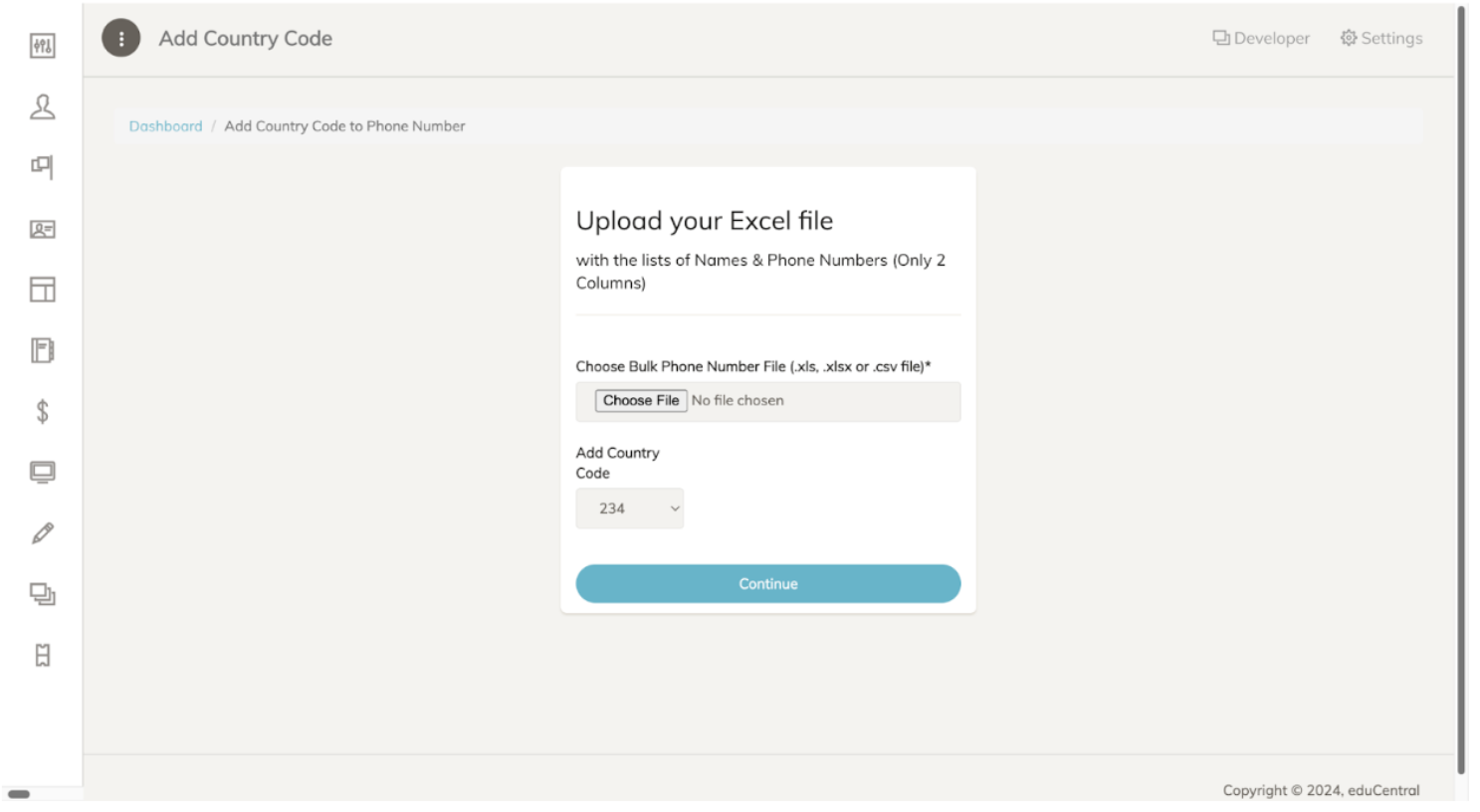
To add a country code, upload an Excel file containing a list of names and phone numbers. Then, add a country code to each number. To finalize, click the 'Continue' button, which is highlighted in blue.